When you power on your Recalbox, you land in its interface (EmulationStation). It is what lets you browse your games, launch them and configure the whole system. This page gives it a full tour.
¶ The two main screens
¶ The system list
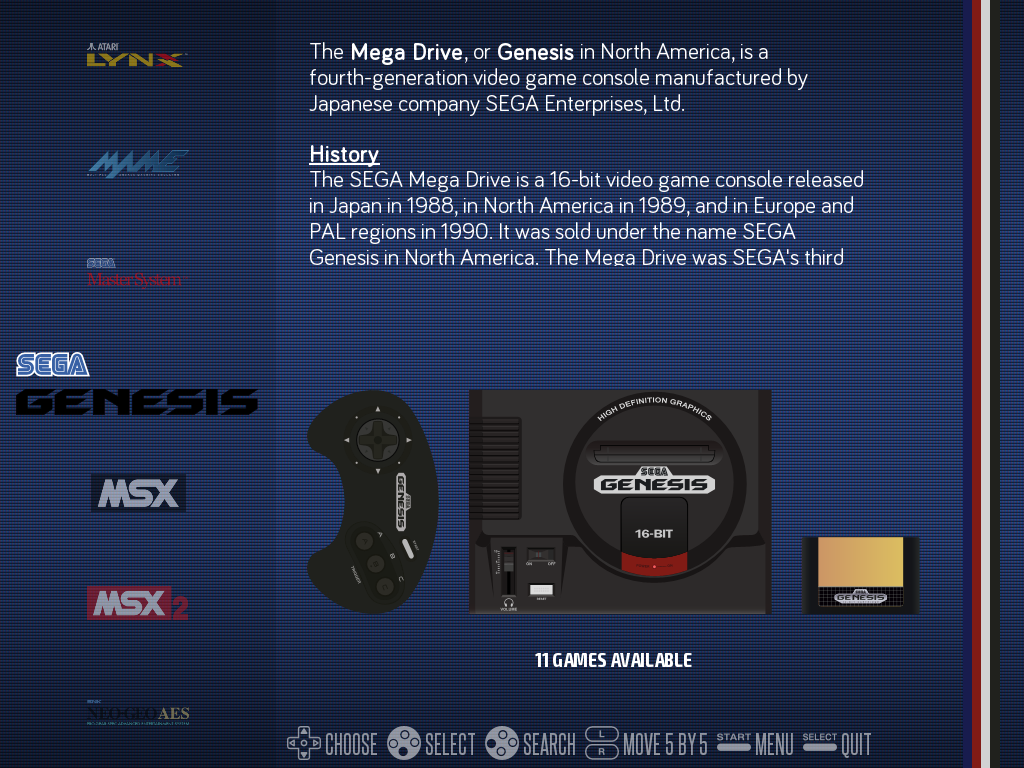
The first screen shows the available consoles and computers (only systems that contain games are displayed).
¶ The game list
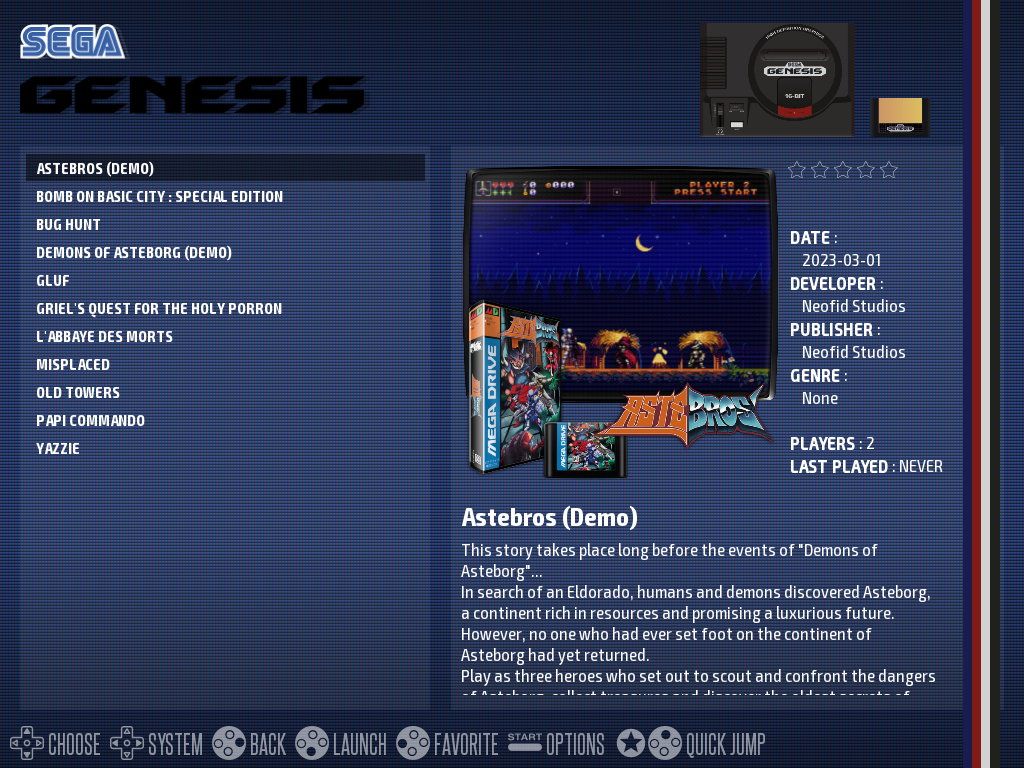
Select a system to display its games. Depending on the theme and your settings, the list shows the visuals, videos and information of scraped games, and since 10.1 a LOGO view and a manual reader — see Game list views and manuals.
Once a game is running, the in-game shortcuts are on the Special commands page.
¶ The controls
On Recalbox, by default,
Bvalidates andAgoes back (like on the Super Nintendo). TheSWAP VALIDATE/CANCEL BUTTONSoption (inUSER INTERFACE SETTINGS) reverses this behavior.
¶ On the system list
| Button | Action |
|---|---|
← / → |
Change system |
L1 / R1 |
Move 5 systems at a time |
B |
Enter the system |
Y |
Open the game search |
X |
Start Kodi and/or the Netplay lobby |
START |
Open the MAIN MENU |
SELECT |
Open the QUIT menu (shutdown / restart) |
HK + Y |
Start the screensaver immediately (demos, game clips…) |
HK + R1 |
Skip the current music — new in 10.1 |
¶ In a game list
| Button | Action |
|---|---|
↑ / ↓ |
Navigate the list |
B |
Launch the game (or open the folder) |
A |
Go back |
Y |
Add/remove the game from favorites |
X |
Netplay (when the system supports it) |
← / → |
Previous/next system (side navigation) — or ±10 games when it is disabled |
L1 / R1 |
Jump to the previous/next letter |
L2 / R2 |
Move 10 games at a time |
HK + X |
Quick jump to a game — new in 10.x |
HK + ← / → |
Fold/unfold clones (arcade) or versions (1G1R) |
START |
Open the context menu (game and list options) |
¶ Favorites
Y on a game adds it to your favorites: it moves to the top of the list with a ☆, and the FAVORITES virtual system gathers all of them. Shut down cleanly (QUIT menu) so the list is properly saved.
Your favorites are saved in a gamelist-userdata.ini file, written next to your roms — so on the external drive if that is where your games live. It is separate from the gamelist.xml produced by scraping, which is what keeps a later scrape from wiping them.
¶ The main menu
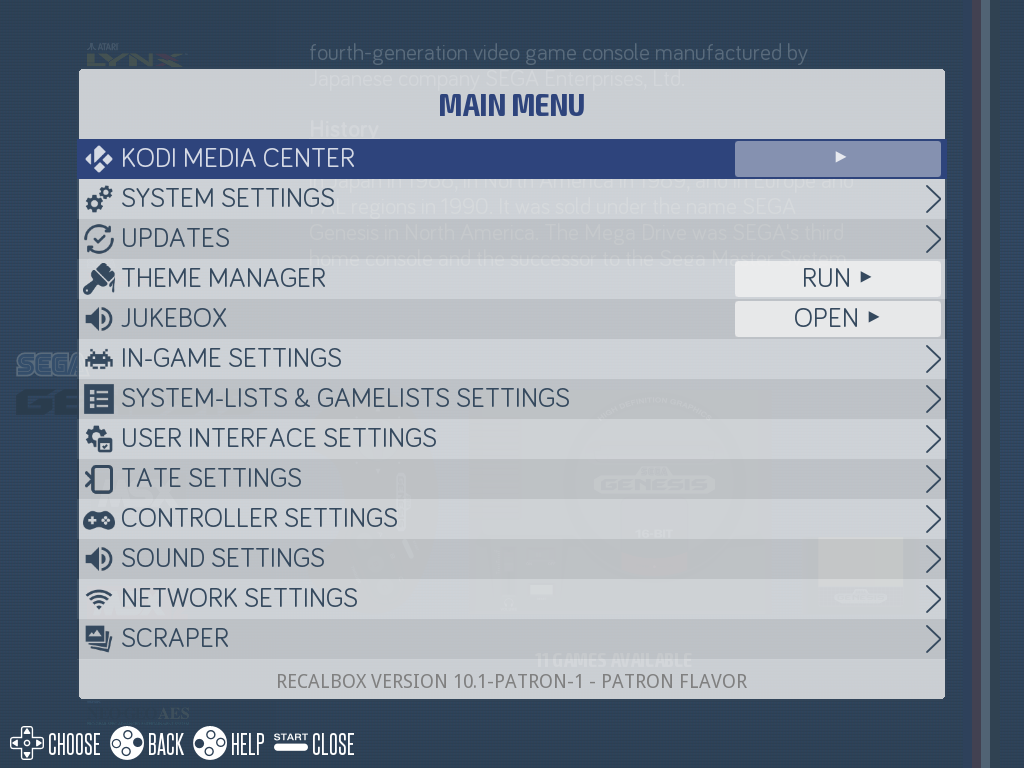
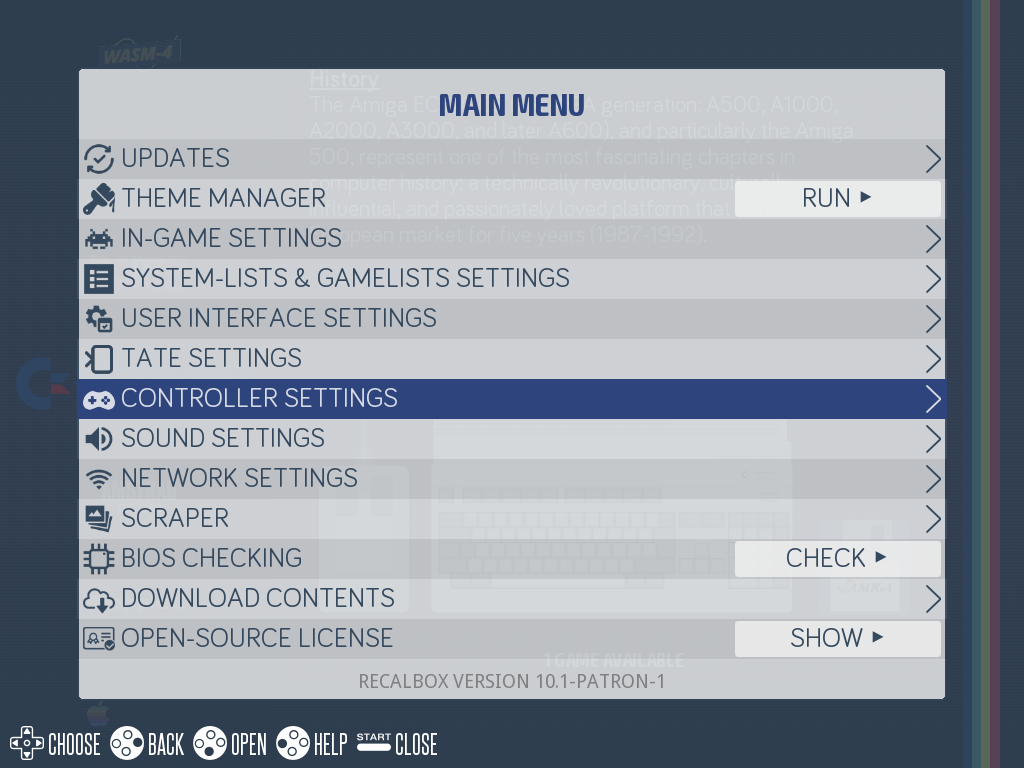
Press START to open the MAIN MENU.
¶ KODI MEDIA CENTER
Starts Kodi, the built-in media center (also reachable with X from the system list, when the shortcut is enabled).
¶ SYSTEM SETTINGS
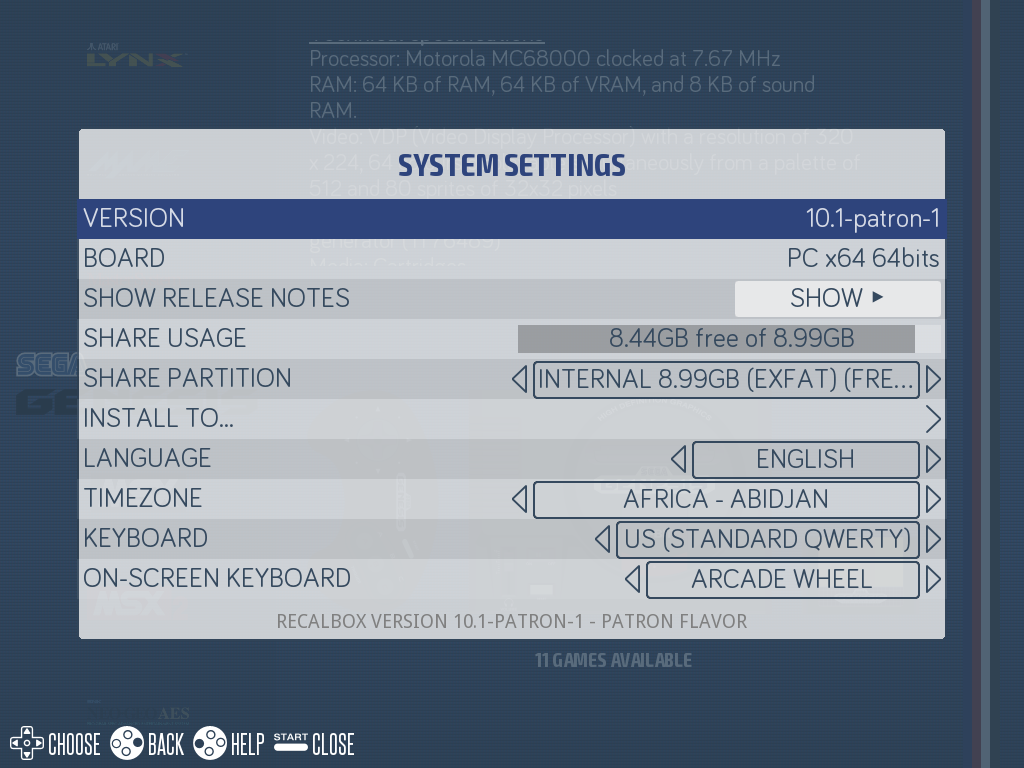
Your Recalbox's ID card: version (and its release notes), platform, share usage and choice of the storage partition, language, timezone, keyboard type, and virtual keyboard (ON-SCREEN KEYBOARD).
On PC and Raspberry Pi 3/4/5, this is also where INSTALL TO... lives: installation to an internal disk, new in 10.1.
¶ UPDATES
Check, read the release notes and launch the update of your Recalbox.
¶ THEME MANAGER
New in 10.x: download and install interface themes from Recalbox itself, without a computer — see Theme manager.
¶ JUKEBOX
Patrons only: the interface music playlists — see Jukebox.
¶ IN-GAME SETTINGS
Everything that applies while playing: rewind, softpatching, auto save/load, aspect ratio, smoothing, pixel perfect, shaders, HD and widescreen modes, RetroAchievements and Netplay.
A few options in this menu are less known:
| Option | Purpose |
|---|---|
SHOW SAVE STATES ON START |
when launching a game, offers to start it normally or to resume from one of its existing save states |
AUTO SAVE/LOAD |
saves the state when you quit a game, and reloads it on the next launch |
PRESS TWICE TO QUIT GAME |
requires pressing the exit combination twice, to avoid accidental exits |
GAME BOY MODE |
runs Game Boy games in GAME BOY, SUPER GAME BOY mode (decorative border and colourisation of some monochrome games), or ASK AT LAUNCH to choose for each session (decorative border and colorization of some monochrome games) |
AUTO BLITTER (FBNEO/MAME) |
automatically tunes blitter and CPU settings for FinalBurn Neo and MAME; improves emulation accuracy on demanding games (Cave…) |
ENABLE VULKAN DRIVER |
enables the Vulkan driver when the hardware provides one |
AUTO SAVE/LOADrecords the state at the exact moment you quit: quitting mid-jump over a pit or on a Game Over will reload that very situation next time. Get into the habit of leaving a game in a stable spot.
ENABLE VULKAN DRIVERis on by default on Raspberry Pi 4, Raspberry Pi 5 and PC. If Dreamcast, Naomi or Atomiswave games stop running, turn it off: that is the first thing to check.
In this menu,
FEATURES,GAMES RENDERING,RETROACHIEVEMENTS SETTINGSandNETPLAY SETTINGSare not sub-menus: they are section headers inside one single list. There is nothing to enter, just scroll down.
¶ SYSTEM-LISTS & GAMELISTS SETTINGS
New in 10.x, this menu gathers everything list-related, split into sections: SYSTEM LISTS, VIRTUAL SYSTEMS, GAMES, ARCADE SYSTEMS and ARCADE GAMES.
- system sorting and display, game list update — see Systems display;
- virtual systems (all games, multiplayer, last played, lightgun, spinner, trackball, ports, genres…).
The GAMES section holds the content filters of the game lists. They apply instantly, without a reboot:
| Option | Effect |
|---|---|
ENABLE ADDING/REMOVING FAVORITES |
allows or forbids editing favorites — turn it off on a public machine |
SHOW ONLY FAVORITES / SHOW FAVORITES FIRST |
keep only favorites, or move them to the top of the lists |
SHOW HIDDEN GAMES |
shows again the games flagged as hidden in their metadata |
SHOW ONLY LATEST VERSION |
keeps only the most recent revision of a game (handy on TOSEC sets) |
SHOW MAHJONG AND CASINO GAMES |
those games are hidden by default; requires scraped games |
SHOW ADULT GAMES |
likewise, hidden by default |
SHOW PREINSTALLED GAMES |
the free games shipped with Recalbox |
SHOW ONLY 3+ PLAYERS GAMES |
for evenings with friends |
SHOW ONLY YOKO (HORIZONTAL) GAMES / TATE (VERTICAL) GAMES |
depending on your screen orientation; the two are mutually exclusive |
SHOW ROMS MARKED AS NON-GAMES |
applications and utilities flagged as non-games |
DISPLAY BY FILENAME |
shows the file name instead of the scraped name |
A game that "disappeared" from your lists is almost always a filter left on. Check
SHOW ONLY FAVORITES, theYOKO/TATEfilters andSHOW ONLY 3+ PLAYERS GAMESbefore looking any further.
¶ One game, one ROM (1G1R)
Still in the GAMES section, ENABLE ONE GAME ONE ROM (1G1R) groups the regional versions of a game under a single entry, instead of lining up twenty USA, Japan, Europe, France… variants. Three lists decide which version is shown: PRIORITY REGION (1G1R), SECOND PRIORITY REGION (1G1R) and THIRD PRIORITY REGIONS (1G1R) (used when the first two match nothing).
The other versions are not deleted: they remain reachable by unfolding the entry with HK + → (and HK + ← to fold it back).
¶ The arcade lists
The ARCADE SYSTEMS and ARCADE GAMES sections replace the dedicated arcade menu of previous versions:
| Option | Effect |
|---|---|
ENABLE AGGREGATED ARCADE SYSTEM |
merges MAME, FinalBurn Neo, Neo-Geo… into a single ARCADE system |
HIDE ORIGINAL SYSTEMS |
leaves only the ARCADE system in the carousel |
MANUFACTURER VIRTUAL SYSTEMS |
creates one system per manufacturer or board (CPS1/2/3, SEGA, TAITO…) |
ENABLE ENHANCED VIEW |
richer arcade view, with parents and clones sorted hierarchically |
FOLD CLONES BY DEFAULT |
the arcade counterpart of 1G1R: one game = one line, clones and bootlegs folded away |
HIDE BIOS |
hides the bios files that clutter MAME lists |
HIDE NON-WORKING GAMES |
hides unknown and non-working sets |
ALWAYS USE OFFICIAL NAMES |
uses titles from the official databases, overriding manual edits and scraper results |
¶ USER INTERFACE SETTINGS
The interface's look and behavior: screensaver, theme and its options, transitions, side navigation, fast scrolling, help display, validate/cancel swap, clock, popups.
| Option | Effect |
|---|---|
ENABLE SIDE NAVIGATION IN GAME LISTS |
← / → inside a game list switches to the previous/next system |
GAME LAUNCH TRANSITION STYLE |
INSTANT, FADE (fade to black) or ZOOM (zoom on the game cover) |
ENABLE FAST MOVE IN GAMELIST |
holding up/down scrolls the list very fast |
POPUP SETTINGS |
three durations in seconds: help, music, netplay |
On an arcade cabinet or a stick, side navigation causes accidental system changes on every horizontal joystick move: turn it off, and
←/→then move 10 games at a time inside the list.
The three
POPUP SETTINGSentries are durations, not switches: to remove a kind of notification entirely, set its slider to 0 second.
¶ TATE SETTINGS
Options for vertical-screen games (game rotation, interface rotation, tate virtual system).
¶ CONTROLLER SETTINGS
Configure a controller (the 10.1 visual configurator), test a controller (TEST A CONTROLLER), pair/forget Bluetooth controllers, pairing at boot, controller OSD, rumble, and the player 1 to 10 assignment.
¶ SOUND SETTINGS
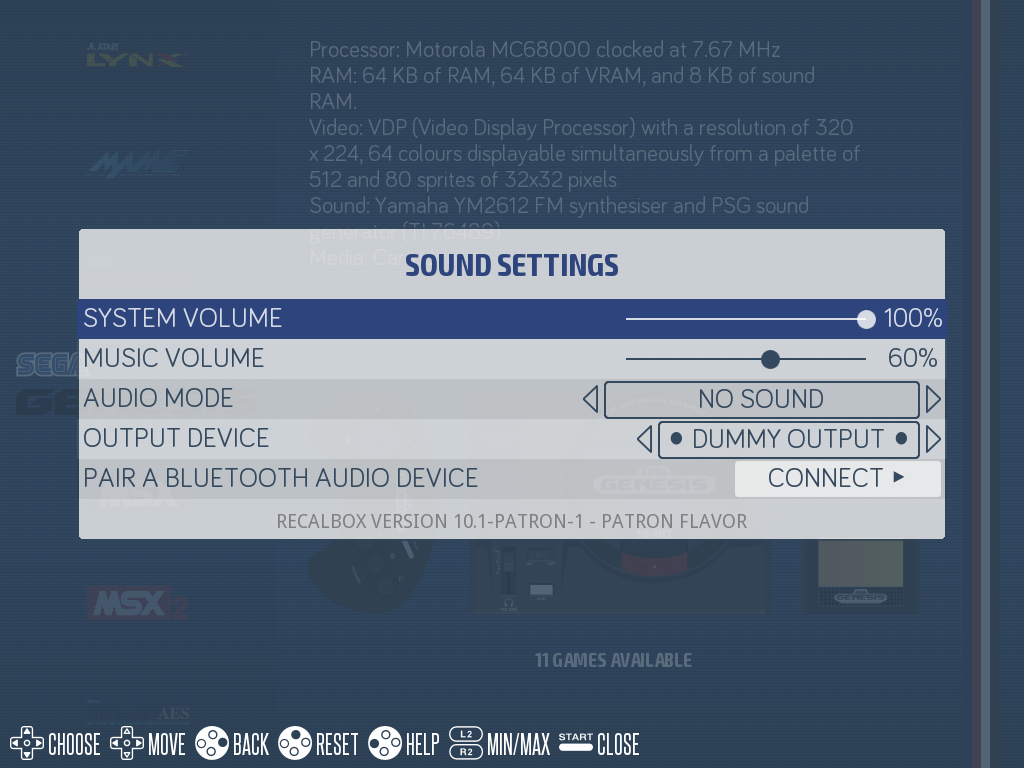
System and music volumes, audio mode, audio output, and pairing of Bluetooth audio devices (speakers, headsets).
¶ NETWORK SETTINGS
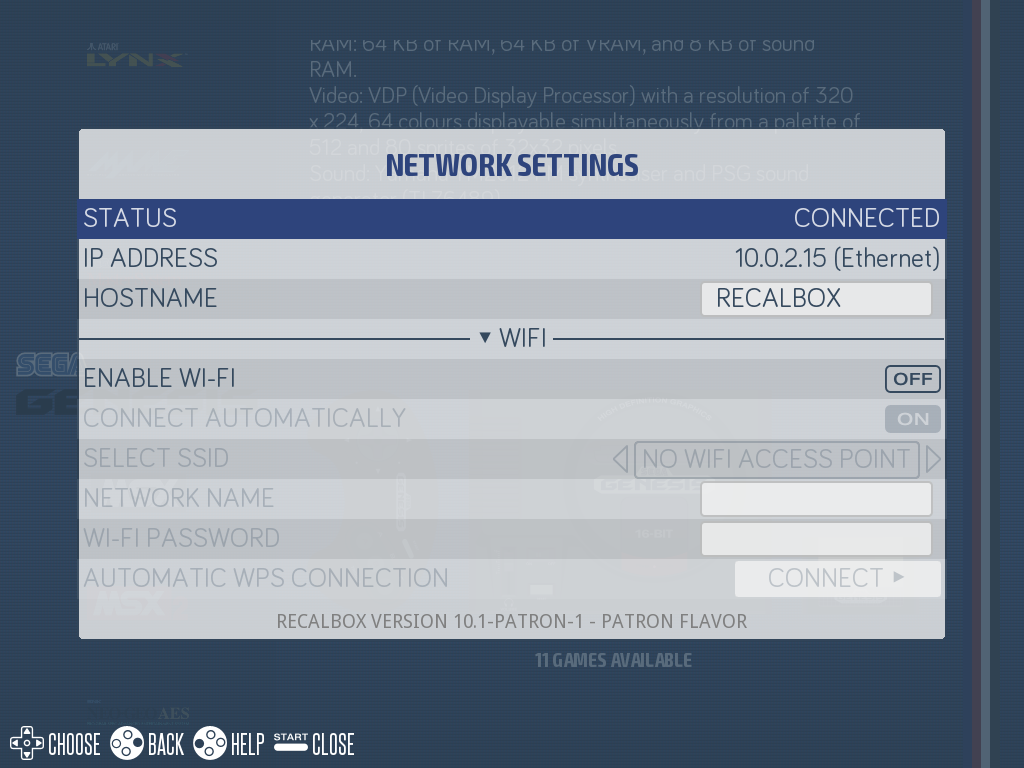
Status, IP address, network name and Wi-Fi configuration — see Network.
¶ SCRAPER
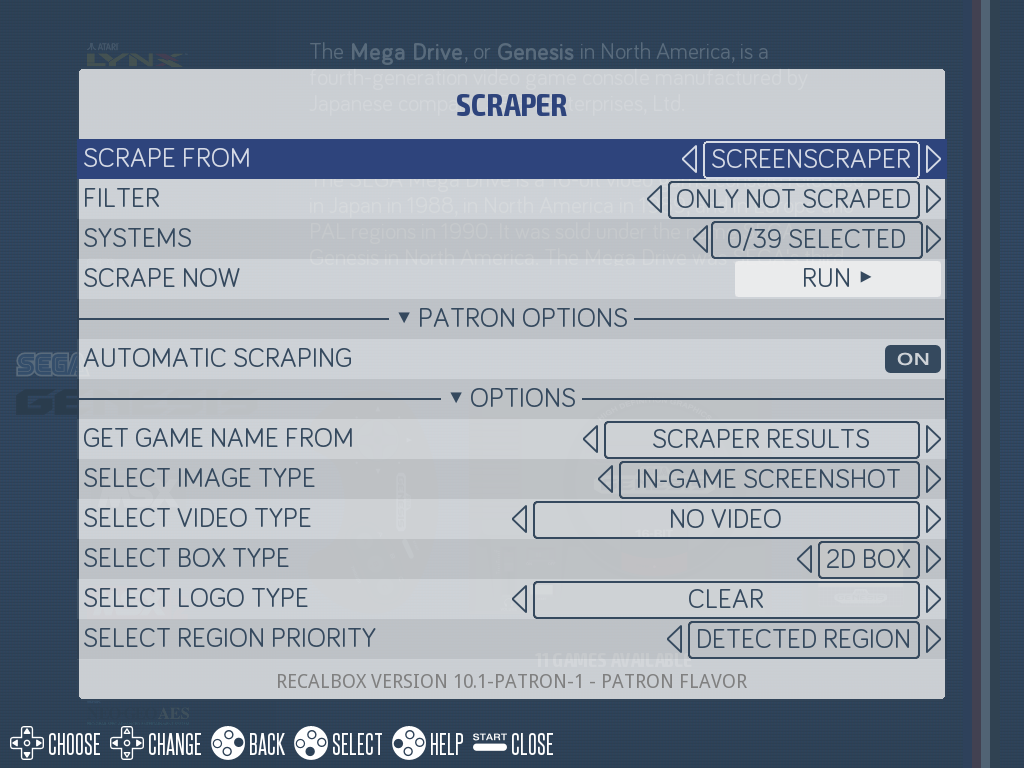
Download visuals, videos, manuals and information for your games — see Internal scraper, largely enriched in 10.1 (box types, logos, Tips & Tricks…).
¶ BIOS CHECKING
The state of every bios required by your systems — see Bios check.
¶ DOWNLOAD CONTENTS
Download 100% legal games for the systems that offer it: TIC-80, Uzebox, Vectrex, WASM-4, Quake III, Tomb Raider, Theme Hospital and VVVVVV.
¶ OPEN-SOURCE LICENSE
Shows the Recalbox license.
¶ ADVANCED SETTINGS
For users who want to go further:
- debug logs (see Troubleshooting);
- boot settings (Kodi at startup, boot on a system or a game, boot videos…);
- interface and game resolutions;
- advanced emulator configuration (emulator/core, per-system settings);
- Kodi options, user scripts, web manager;
- emulator configuration reset and reset to factory settings;
- hardware: CRT settings, case management, bootloader update (Pi 4/5) and overclock.
The most aggressive overclock settings can damage your Raspberry Pi without proper cooling and void its warranty.
BOOT SETTINGS deserves a detour: it is what lets you specialize a machine.
| Option | Effect |
|---|---|
DO NOT SCAN NEW GAMES |
on boot, Recalbox reads the gamelist.xml files instead of walking every folder — a much faster startup on large libraries |
ALLOW BOOT ON GAME |
adds BOOT ON THIS GAME to the game context menu; on the next boot, that game launches straight away |
BOOT ON SYSTEM |
the system the carousel sits on at startup |
BOOT ON GAMELIST |
boots straight inside the game list, not on the carousel |
HIDE SYSTEM VIEW |
removes the system view entirely: the machine only ever shows the chosen list |
With
DO NOT SCAN NEW GAMESon, the games you add, move or delete are no longer detected automatically. You have to runUPDATE GAMES LISTSby hand. This is the number one cause of the "I added games but they do not show up" symptom.
To turn the machine into a console dedicated to a single system: BOOT ON SYSTEM = the system you want, BOOT ON GAMELIST to ON, then HIDE SYSTEM VIEW to ON.
¶ QUIT
Also reachable with SELECT from the system list:
SHUTDOWN RECALBOX— clean shutdown (recommended): all pending operations are completed before the power goes off;FAST SHUTDOWN RECALBOX— immediate shutdown: pending operations are ignored and no change is saved;RESTART RECALBOX.
If your favorites, settings or play times are "never kept", the fast shutdown is probably being used — or the power is being cut directly. Use
SHUTDOWN RECALBOX.
Extra menus appear depending on your hardware:
RECALBOX RGB DUAL SETTINGS(andRGB DUAL 2),RECALBOX RGB JAMMA,RECALBOX JVS SETTINGSandRECALCARDS SETTINGS— see each product's documentation.
¶ The context menu
From a game list, START does not open the main menu but the CONTEXTUAL OPTIONS menu: every action about the selected game and the list you are in. Its last two entries switch over to the MAIN MENU or to QUIT.
| Entry | Purpose |
|---|---|
EDIT GAME <name> |
game metadata: emulator (RUN WITH), patch, ratio, name, rating, genre, description, favorite, hidden, adult, rotation — plus SCRAPE and the statistics (TIME PLAYED, PLAY COUNT, LAST PLAYED) |
SHOW MANUAL/MAP |
opens the game's manual, map or Tips & Tricks — see Game list views and manuals |
DELETE GAME <name> |
deletes the rom from the interface, letting you keep or remove media, saves and configuration files |
BOOT ON THIS GAME |
sets this game as the boot game (requires ALLOW BOOT ON GAME) |
RUN SAVE STATE |
lists the game's save states and starts the game from one of them |
SEARCH GAMES HERE |
search restricted to the current system |
SEARCH OTHER VERSIONS / SEARCH BY LICENCE |
finds the other versions of the game, or the games sharing its licence |
JUMP TO LETTER |
quick jump to a letter of the list |
SORT GAMES BY |
list order (alphabetical, rating, date…) |
GAME LIST LAYOUT |
list presentation: text, logos, carousel, grid — see Game list views |
DECORATIONS |
information shown at the right of each line: region flags, players or genre |
HIGHLIGHT GAMES OF REGION... |
highlights the games of a given region |
FLATTEN FOLDERS |
removes the subfolder hierarchy and brings every game up to the top level |
SHOW ONLY FAVORITES / FAVORITES FIRST |
the same filters as in the list settings, applied from the list itself |
UPDATE GAMES LISTS |
rescans only the current system — far quicker than a global update |
Advanced system settings |
shortcut to the advanced emulator configuration of the current system |
FLATTEN FOLDERSis mostly useful on MAME, where roms live in a subfolder per romset version: the option removes that intermediate level and shows the games directly.
¶ What next?
| You want to… | Head to |
|---|---|
| Learn the in-game shortcuts | Special commands |
| Customize the interface | Interface customization |
| Tweak what is not in the menus | The recalbox.conf file |