At startup, Recalbox plays a boot video picked at random among the videos shipped with the system. You can add your own videos, choose which ones are played, set how long they play, or disable them entirely.
¶ Adding your own videos
Your personal videos go into the /recalbox/share/bootvideos/ directory.
- Connect to your Recalbox over the network:
- via WinSCP;
- via Cyberduck;
- via MobaXTerm;
- or via your file explorer, by entering
\\your-ip-address\(see finding the IP address of your Recalbox).
- Open the
sharenetwork share, then thebootvideosfolder. - Copy your videos in
.mp4,.avior.mkvformat directly at the root of the folder (subfolders are not scanned). - Reboot: your videos join the random rotation.
📷 Screenshot coming soon:
bootvideos-share.png
Adding videos can only be done over the network: this folder lives on a dedicated 1 GB system partition (not on the SHARE partition), so it is not visible when plugging the SD card into a computer. Keep the total size of your videos well under that limit (a few hundred MB).
The video volume follows the general Recalbox volume (
audio.volume).
¶ Choosing which videos are played
The selection is set via the system.splash.select parameter in the recalbox.conf file:
- all: the system picks randomly among the original videos and yours (default value, also used if the value is invalid);
- custom: only among your videos;
- recalbox: only among the original videos.
system.splash.select=custom
¶ Setting the playback time
The system.splash.length parameter in the recalbox.conf file sets the playback time of all videos (original or your own):
- -1: the video is played to the end before EmulationStation starts (default value);
- 0: the video is stopped as soon as EmulationStation is ready;
- any value greater than 0: the video plays for at most that number of seconds before EmulationStation starts.
system.splash.length=0
¶ Disabling boot videos
Two options:
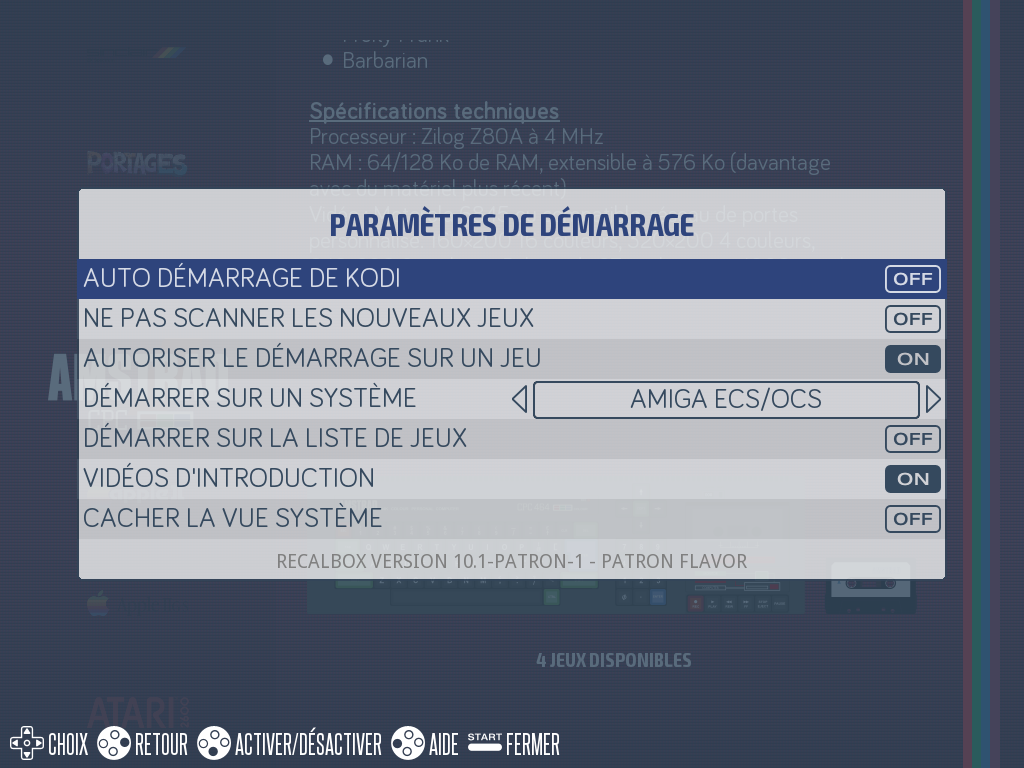
- in the interface:
START→ADVANCED SETTINGS→BOOT SETTINGS→ disableBOOT VIDEOS; - or in recalbox.conf:
system.splash.enabled=0
¶ Special cases
- PC (x86_64): the video is played on every connected screen. You can force its resolution with
system.splash.resolution=1920x1080(list the available resolutions over SSH withmpv --drm-mode=help). - First boot or upgrade: Recalbox plays the official intro video (no random pick), and no video is played while an install or upgrade is in progress.
- Vertical screen (TATE): a dedicated vertical boot video is used.
- Boot straight into a game: if your Recalbox is set to boot directly on a game, the boot video is not played.
¶ The loading screen (splash)
After the video, EmulationStation displays a loading screen with the Recalbox logo and a progress bar.
Since Recalbox 10.1, this loading screen has been redesigned and has a dark variant, enabled via
recalbox.conf:ini ## Loading screen normal (0) or dark (1) system.darkmode=1Cabinets fitted with a Recalbox JVS automatically display a dedicated loading screen of their own.