Recalbox ships with Kodi 21 "Omega", the famous open-source media center: movies, TV shows, music and pictures, from a USB drive, your local network (SMB, NFS, UPnP) or streaming add-ons — without leaving your Recalbox.
Kodi is available on Raspberry Pi (3, 4/400, 5, Zero 2) and PC (x86_64). Handheld boards (Odroid Go, Anbernic RG353…) do not include Kodi.
¶ Launching Kodi
- Press
STARTto open theMAIN MENU. - Select
KODI MEDIA CENTER(RUN) — it is the first entry of the menu.
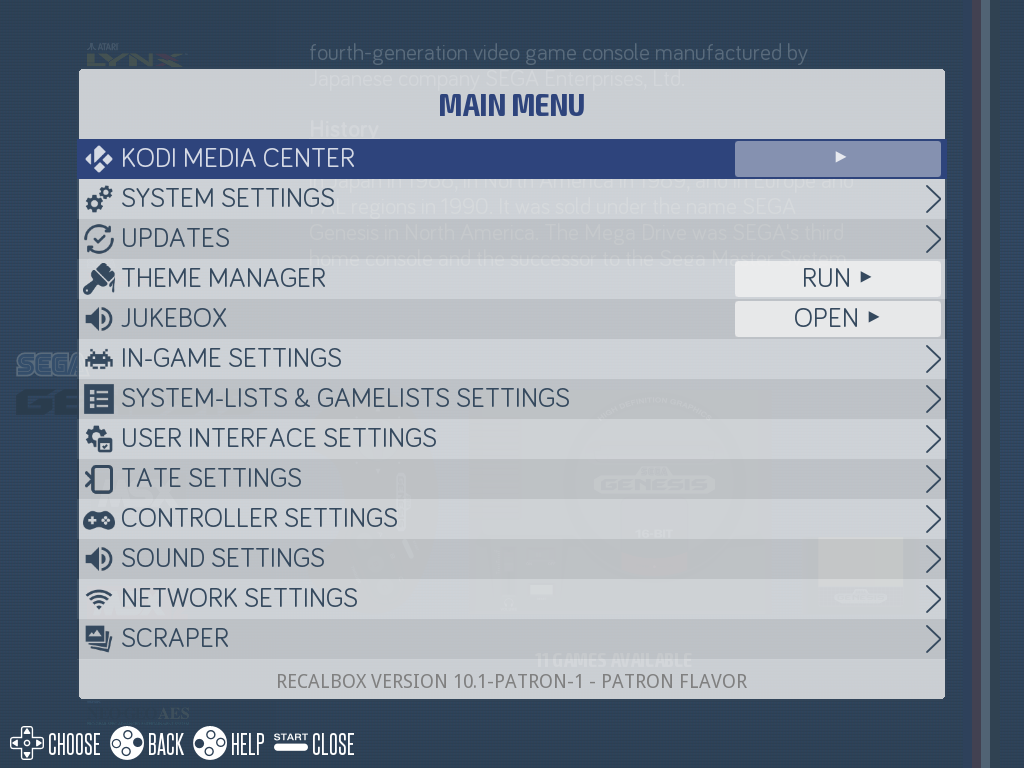
Kodi starts fullscreen in place of EmulationStation.
📷 Screenshot coming soon:
kodi-home.png
Two other launch modes can be enabled (see the options below):
Xbutton: from the system list, theXbutton launches Kodi directly (disabled by default).- At startup: the Recalbox boots straight into Kodi instead of EmulationStation.
If Netplay is enabled, the
Xbutton opens a smallKODI/NETPLAYmenu to choose between the two.
¶ Exiting Kodi
Open Kodi's power menu (the icon at the top left of the home screen, or the SELECT button on your controller), then choose:
| Choice in Kodi | Effect |
|---|---|
Exit |
Back to EmulationStation |
Power off system |
Fully powers off the Recalbox |
Reboot |
Reboots the Recalbox |
📷 Screenshot coming soon:
kodi-power-menu.png
Unlike older Recalbox versions, "Power off" and "Reboot" now act on the whole Recalbox, not just Kodi. To get back to your games, make sure you pick
Exit.
¶ Using your controller in Kodi
Controllers configured in EmulationStation work automatically in Kodi: Recalbox copies your configuration over every time Kodi starts. If a controller misbehaves in Kodi, simply redo its configuration in EmulationStation.
| Button | Action in Kodi |
|---|---|
B |
Select |
A |
Back |
X |
Stop |
Y |
Context menu |
START |
Play / Pause |
SELECT |
Kodi power menu |
L1 |
Information |
R1 |
Add to play queue |
L2 |
Mute |
| D-pad | Navigation |
| Left stick | Volume up / down |
| Right stick | Navigation |
Careful, validation is reversed compared to EmulationStation: in Kodi,
Bselects andAgoes back.
While a video is playing, the D-pad changes role: UP/DOWN jump to the next/previous chapter (or do a big step), LEFT/RIGHT do a small step backward/forward.
¶ Other ways to control Kodi
- HDMI CEC: if your TV supports it, its remote controls Kodi through the HDMI cable, with no configuration at all.
- Smartphone app: Kore (official) or Yatse connect to Kodi's web server, enabled by default on port 8081 of your Recalbox. In the app, enter the Recalbox IP address and port
8081. - Infrared remote (Raspberry Pi): see the dedicated page Using an infrared remote control.
¶ Adding your media
Recalbox creates ready-to-use folders on the share partition:
/recalbox/share/kodi/moviesfor movies,/recalbox/share/kodi/musicfor music,/recalbox/share/kodi/picturesfor pictures.
Copy your files there (over the network or via USB), then add them as a source in Kodi (Videos > Files > Add videos…). Kodi also reads USB drives directly, as well as SMB, NFS or UPnP network shares.
Kodi's interface is in English on first launch. French and many other languages are preinstalled: switch the language in Kodi's interface settings, no download needed.
¶ Bundled add-ons
Recalbox ships Kodi with a selection of add-ons already installed:
- Video streaming: YouTube, Netflix, Plex, Twitch, Crunchyroll, Freebox TV and Orange TV. Subscription services require an account, and some (Netflix for instance) offer to install the Widevine module required for protected streams on first launch.
- Live TV and recordings (PVR): about twenty clients including IPTV Simple, Tvheadend (HTS), HDHomeRun, MythTV, NextPVR, Pluto TV, Waipu.tv and Zattoo.
- Retro music: decoders for video game music formats — SPC (Super Nintendo), NSF (NES), SID (Commodore 64), YM (Atari ST), MIDI, modules (MOD/XM/IT) and VGM.
- Skins: the default Estuary skin, plus the Confluence 480 skin suited to low resolutions.
You can of course install more add-ons from the official repository, directly inside Kodi (Add-ons > Install from repository).
¶ Configuring Kodi from the menu
Open START > ADVANCED SETTINGS > KODI MEDIA CENTER:
📷 Screenshot coming soon:
kodi-options-menu.png
| Option | Purpose |
|---|---|
ENABLE KODI |
Enables/disables Kodi (menu entry, X button and auto-start included) |
KODI RESOLUTION |
Resolution for the interface and videos |
RUN KODI ON STARTUP |
The Recalbox boots straight into Kodi |
START KODI WITH X BUTTON |
Enables the X shortcut from the system list |
Auto-start is also available under ADVANCED SETTINGS > BOOT SETTINGS > KODI AT START.
¶ For advanced users
The same options exist in the /recalbox/share/system/recalbox.conf file:
## Show or hide kodi in emulationstation (0,1)
kodi.enabled=1
## Start kodi at launch (0,1)
kodi.atstartup=0
## set x button shortcut (0,1)
kodi.xbutton=0
## Specific resolution for Kodi (default = your screen's resolution)
kodi.videomode=default
Kodi can also wait for a machine on your network (a NAS for instance) to be reachable before starting:
## required: Kodi will not start if the host does not answer
## wish: Kodi starts anyway after the timeout
;kodi.network.waitmode=required
## Maximum wait time (seconds)
;kodi.network.waittime=10
## IP or hostname to reach (ping)
;kodi.network.waithost=192.168.0.50
Finally, the controller button → Kodi action mapping can be customized in /recalbox/share/system/configs/kodi/input.xml, using the actions listed on the Kodi wiki.
Need help? Join the Recalbox Discord, the community answers questions every day.