A theme is the complete skin of EmulationStation: wallpaper, system carousel, game list layout, fonts, colours, sounds and animations. Changing it transforms the whole look of your Recalbox without touching a single game setting.
The theme manager, introduced with Recalbox 10, fetches the official theme catalogue online and lets you browse, install, update, activate and delete themes straight from the machine — no computer, no SD card to pull out. Switching themes is instant: no reboot required.
The manager needs an Internet connection to fetch the catalogue and download themes. Without a network, themes already installed remain available through
MAIN MENU→USER INTERFACE SETTINGS→THEME.
¶ Opening the manager
Press START to open the MAIN MENU, select THEME MANAGER and validate (RUN).
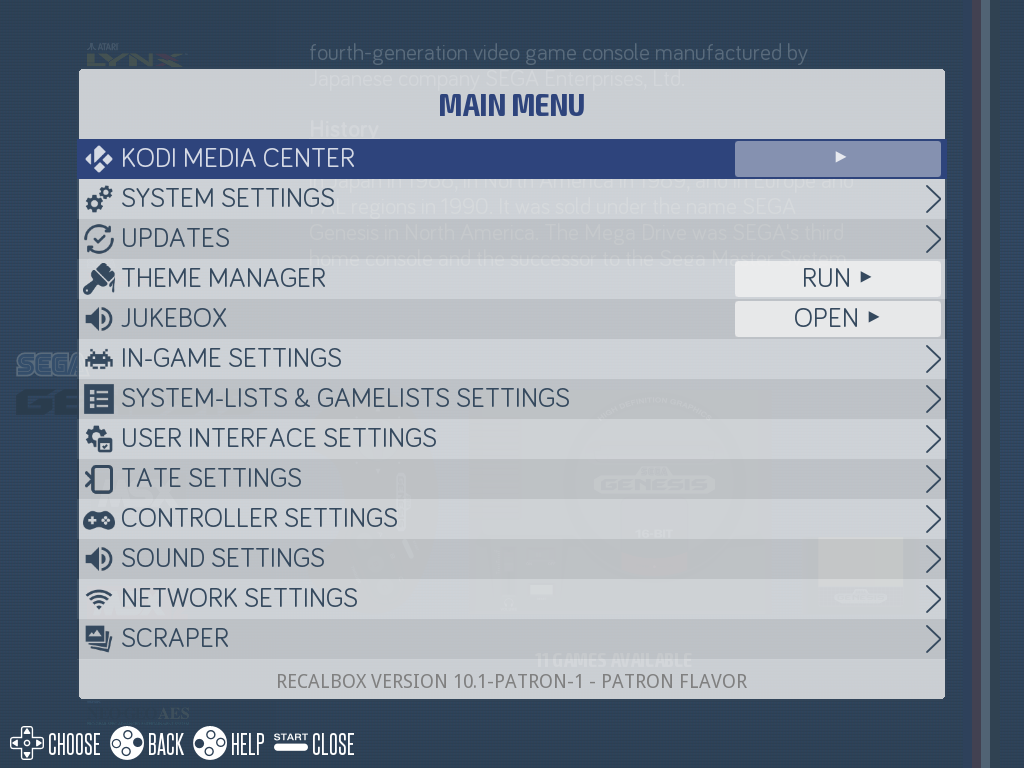
Recalbox shows Loading theme list... then Loading theme information... with a progress bar while it fetches the catalogue and each theme's data sheet.
If the catalogue cannot be retrieved, the message
Unexpected error while retrieving theme list ! Please retry later.is displayed and the manager closes. Check your network connection and try again.
¶ The manager screen
The manager shows one theme at a time. The title reads THEME MANAGER (n/total): the position of the current theme in the catalogue.
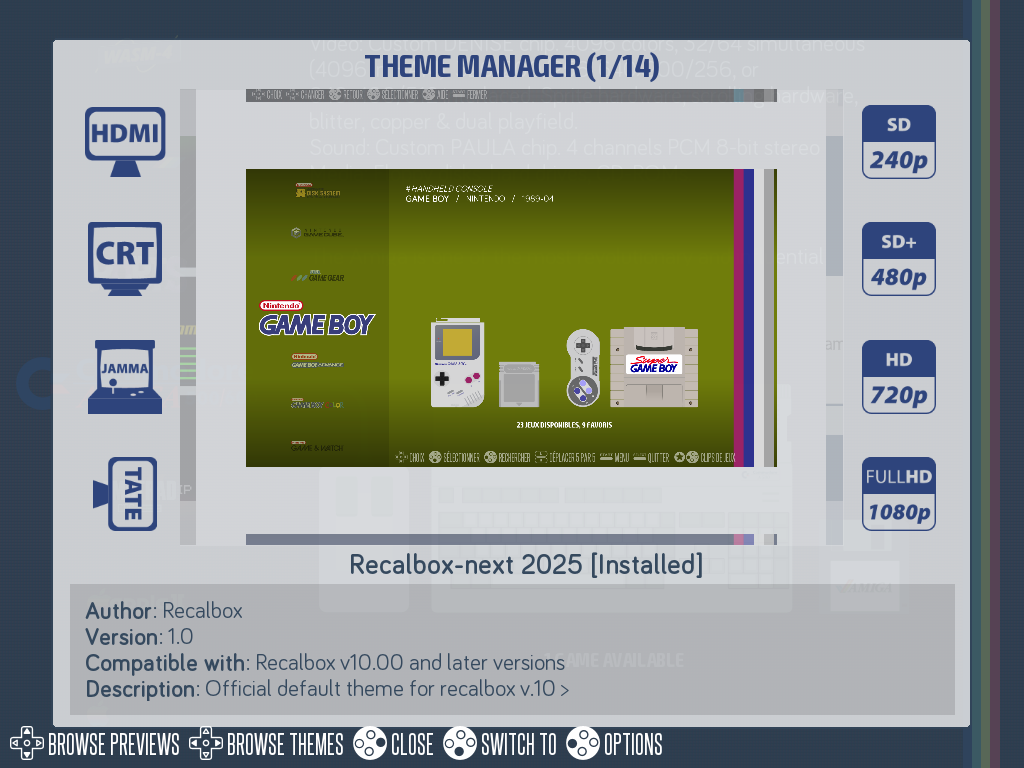
In the middle, the theme's screenshots (system list, game lists, menus, game clips) scroll vertically.
On either side, pictograms tell you what the theme supports — lit if compatible, dimmed otherwise:
| Column | Pictograms | Meaning |
|---|---|---|
| Left — display | HDMI, CRT, JAMMA, TATE |
Screen types the theme targets (TATE = screen rotated vertically) |
| Right — resolution | SD 240p, SD+ 480p, HD 720p, FULLHD 1080p |
Resolutions the theme was designed for |
A Patreon logo appears in the top right corner on patron-only themes.
Below the screenshots, the theme name is followed by its state, [Installed] or [Not Installed], then by a data sheet:
Author— the theme author;Version— the theme version, orUNKNOWNfor a manually installed theme;Compatible with—Recalbox v10.00 and later versions, for instance;Download Size— the size of the archive to download;Description— the theme presentation, shown in your language when the author translated it.
¶ The controls
| Control | Action |
|---|---|
LEFT/RIGHT (BROWSE THEMES) |
Move from one theme to the next |
UP/DOWN (BROWSE PREVIEWS) |
Scroll through the screenshots of the current theme |
A (INSTALL) |
Download and install the theme (when not installed) |
A (SWITCH TO) |
Activate an already installed theme |
A (UPDATE) |
Install the newer version of an already installed theme |
X (DELETE) |
Uninstall the theme |
Y (OPTIONS) |
Open the theme options — only on the active theme |
B (CLOSE) |
Leave the manager |
The A button therefore relabels itself depending on the situation: INSTALL, SWITCH TO or UPDATE. Likewise, DELETE and OPTIONS only appear in the help bar when they are possible.
START, not shown in the help bar, reloads the catalogue: handy after copying a theme by hand, or to retry loading after a network glitch.
¶ The catalogue
The catalogue gathers three families of themes:
- Themes shipped with Recalbox —
recalbox-next(the default theme),recalbox-next-v9andrecalbox-240p. They are always there, are never downloaded, and cannot be deleted. - Themes from the official repository — published and vetted by the Recalbox team, downloaded on demand.
- Patron themes — an exclusive selection added to the catalogue for Recalbox Patreon supporters, once their key is set in
recalbox.conf(see Jukebox for how to activate patron status).
Themes you copied yourself into /recalbox/share/themes also show up in the list, under the name read from their theme.xml, with the note This a manually installed theme. We have no information about it. — see Installing themes.
Many themes are published in several variants (one per screen type and resolution). You have nothing to choose: Recalbox detects your display and automatically picks the variant and the screenshots that best match your hardware.
¶ Switching the active theme
Move to an installed theme and press A (SWITCH TO). The new theme loads immediately, without rebooting: Loading new theme <name> is displayed while it swaps over.
If the theme is not meant for your setup, Recalbox asks for confirmation with the details — unsupported display, unsupported resolution, TATE mode not handled, or a theme version that is too old — followed by Are you sure to activate this theme?. You can go ahead anyway, at the risk of a broken layout.
The active theme can also be changed from MAIN MENU → USER INTERFACE SETTINGS → THEME → THEME SET. In that list, each theme is prefixed with a tick when it is compatible with your setup, or a warning sign otherwise, and followed by its version number.
¶ Where themes are stored
EmulationStation looks for themes in three folders:
| Location | Content |
|---|---|
/recalbox/share_init/system/.emulationstation/themes/ |
Themes shipped with Recalbox, read-only |
/recalbox/share/themes/ |
Themes installed by the manager and themes copied by hand |
/recalbox/share/system/.emulationstation/themes/ |
Legacy location, still read |
A folder is only recognised as a theme if it contains a theme.xml file at its root.
Inside themes installed by the manager, a hidden .installedFrom file keeps the original URL: this is what lets Recalbox match the theme against the catalogue and detect updates. Do not delete it.
The active theme is stored in recalbox.conf:
emulationstation.theme.folder=recalbox-next
¶ Going further
- Installing themes — installing from the catalogue, updating, removing, and installing by hand.
- Theme options — colour sets, layouts, regions and the other settings themes expose.
- Creating and editing a theme — the full documentation of the EmulationStation theme format.
- Built a theme? Show it on the Recalbox Discord: that is how a theme joins the official repository.
¶ Frequently asked questions
The manager shows an error while loading. The catalogue is fetched online: make sure Recalbox has Internet access (MAIN MENU → NETWORK SETTINGS), then reopen the manager or press START to restart the loading.
I cannot see the patron themes. They only appear with an active patron status: the patron.privatekey key must be set in recalbox.conf and validated at boot.
DELETE does not show up. Themes shipped with Recalbox cannot be removed — that is by design, it guarantees there is always a working theme on the machine.
OPTIONS does not show up. The Y shortcut only opens the options of the theme currently in use. Apply the theme first (A), then press Y.
Do I need to reboot after changing theme? No. Both theme changes and theme option changes are applied on the fly.