¶ Recalbox JVS — User Manual
This manual covers firmware 2.12, shipped with Recalbox 10.1. The Raspberry Pi 5 reflashes the board automatically if its firmware is older (see §16).
Recalbox JVS is exclusively compatible with the Raspberry Pi 5. JVS support is built into Recalbox 10.1, available to everyone from the official download page.
¶ Turn your JVS arcade cabinet into a plug-and-play Recalbox cabinet
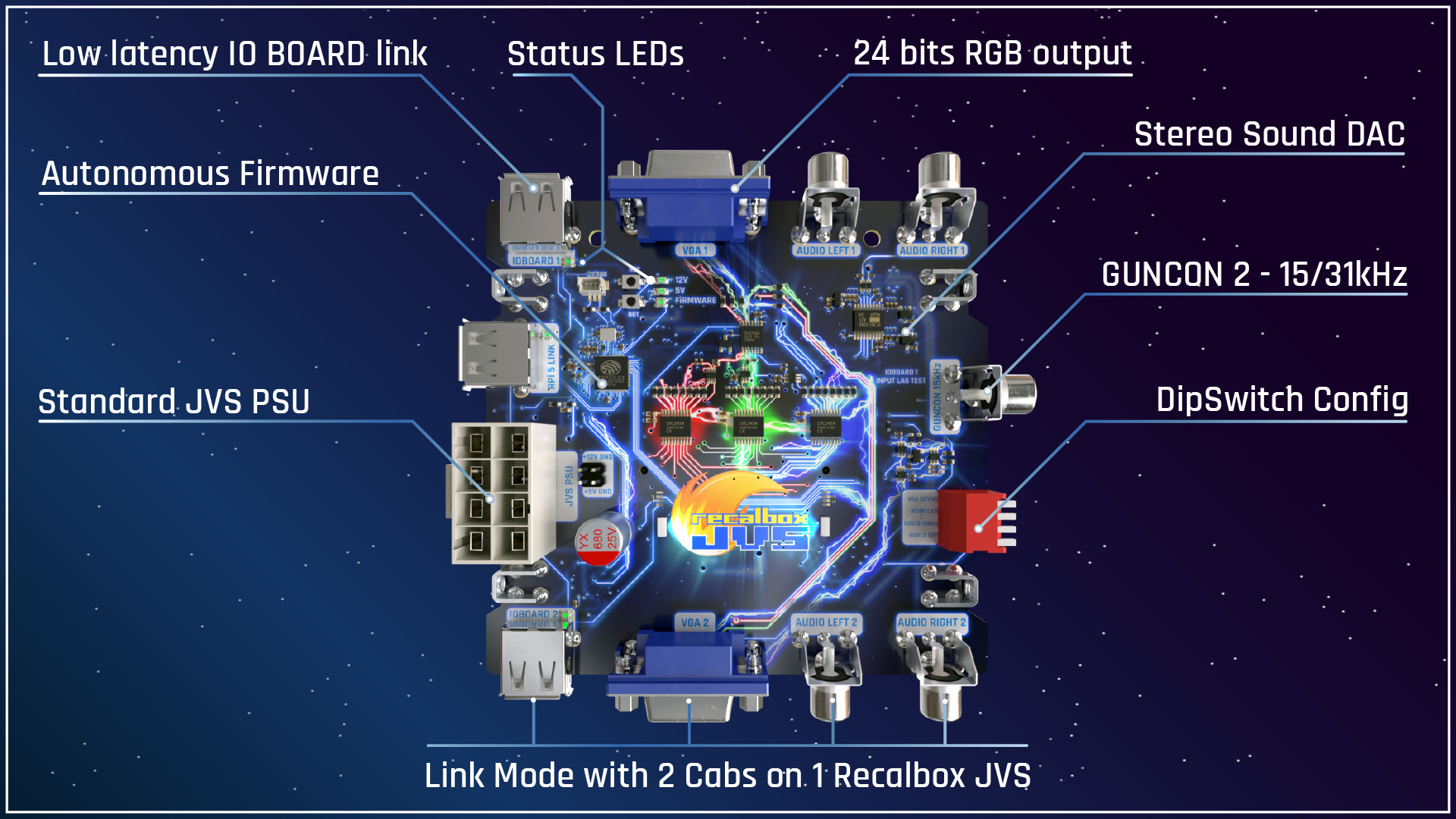
Recalbox JVS turns your JVS arcade cabinet into a full Recalbox cabinet. It plugs in in place of your cabinet's original system and gives you the whole Recalbox experience: 2D and 3D arcade, Naomi, Atomiswave, Dreamcast, consoles and home computers.
Plug in, power on, play: the cabinet is recognized automatically and the system is ready in seconds, with zero configuration.
¶ At a glance
- Exclusively compatible with the Raspberry Pi 5
- Plug-and-play installation
- RGB 15 / 24 / 31 kHz and HDMI video output
- JVS inputs with less than 1 ms of added input lag
- Link Mode: two cabinets driven by a single Recalbox JVS
- Compatible with Naomi Universal Cabinet, New Net City, Net City, Vewlix, Noir Cabinet, Lindbergh and other JVS cabinets depending on configuration
Recalbox JVS was launched on its Kickstarter.
¶ 1. What is JVS?
JVS (JAMMA Video Standard) succeeded JAMMA in the late 1990s, to support a new generation of arcade cabinets.
Unlike JAMMA (a 56-pin connector mixing analog inputs and direct signals), JVS modernizes the whole standard:
- controls are handled by an IOBoard and sent to the system digitally, over an RS-485 protocol on a USB cable;
- the system is expandable: several IOBoards can be daisy-chained to handle 4 or more players.
JVS powers most modern arcade cabinets — Naomi Universal Cabinet, New Net City, Net City, Vewlix, NoirCab, Lindbergh, Windy 2… — and has been the arcade standard for 25 years.
Recalbox JVS talks directly to your cabinet's IOBoard, reads joysticks, buttons, wheels, pedals, guns and coin mechanisms, and forwards them to the Pi 5.
¶ 2. Installation
¶ Installing Recalbox 10.1 on the Raspberry Pi 5
Recalbox JVS support is built into Recalbox 10.1: there is no dedicated build to install any more. Download the rpi5_64 image from the official download page, then follow the installation guide.
If your cabinet is not connected to the internet, you can update offline by copying the image onto the SD card:
- Download the two files of the Raspberry Pi 5 build: the
.img.xzimage and its.sha1checksum. - Power off the cabinet, remove the SD card from the Raspberry Pi 5 and plug it into your PC.
- Check that the
SHAREpartition has at least 10 GB free (otherwise Recalbox will refuse the update for lack of space). - Copy both files (
.img.xzAND.sha1) into theupdates/folder of theRECALBOXpartition. Eject the card cleanly. - Put the SD card back into the Pi 5 and power the cabinet on. Recalbox finds the files in
updates/and starts the migration automatically. Expect 5 to 15 minutes depending on the SD card speed. - After the reboot, the
RECALBOX JVS SETTINGSmenu appears in EmulationStation: the board is detected.
💡 Watching the progress (optional): if you have an HDMI cable and a Pi 5 power supply handy, you can take the Recalbox JVS out of the cabinet before step 5 and plug it into a TV over HDMI — the update progress bar will be shown there. Put it back into the cabinet once the migration is complete. Without that setup, just leave the Recalbox JVS in the cabinet and wait 15 minutes: the migration runs blind but the result is identical.
⚠️ Do not cut power during the migration: the procedure rewrites the system, an interruption can corrupt the SD card and force a full reinstall.
For more details on the offline update procedure, see the Manual update page.
¶ Hardware installation
Recalbox JVS replaces the system of your cabinet (the part that runs the games — "the console inside the cabinet").
Installation is simple: unplug your original system and connect Recalbox JVS to the same connectors — VGA video, audio L+R, the IOBoard connector (USB port) and power. The cabinet boots straight into Recalbox.
Recalbox JVS is compact enough that you can leave your original system in place and switch quickly between the two.
⚠️ If you keep the original system inside the cabinet, unplug its second power connector (the system's dedicated power input, separate from the JVS power). Otherwise both systems are powered in parallel and can conflict on the JVS bus and the video output.
⚠️ Check your power supply voltage. A poorly calibrated PSU can damage the IOBoards, the screen and the Recalbox JVS itself. The firmware shows the +5 V / +12 V voltages at all times (see §7) — keep +5 V within 5.0–5.25 V.
¶ 3. The two operating modes
Recalbox JVS switches dynamically between two modes:
| Mode | Role |
|---|---|
| Firmware mode | Standalone interface shown on the cabinet's screen. Used to choose the cabinet type, test video, audio and controls, and read diagnostics. |
| Pi5 mode | The board acts as a USB gamepad and USB sound card for the Raspberry Pi 5. This is the "gameplay" mode: video and audio come from the Pi 5. |
At startup the mode is picked automatically:
- cabinet not configured → first-time setup wizard;
- Pi 5 ready and IOBoard detected → Pi5 mode (gameplay);
- otherwise → Firmware mode (internal menu).
¶ 4. First-time setup — the wizard
On the very first boot the cabinet is not configured, so the wizard runs. All navigation uses the cabinet's controls (joystick, wheel or gun, depending on the type).
¶ Step 1 — Cabinet type
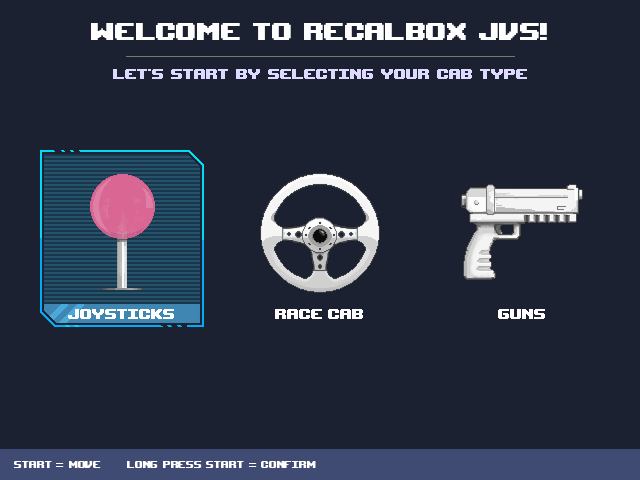
Choose from:
- Joysticks — classic joystick cabinet, 1 to 4 players.
- Race cab — racing cabinet (wheel + pedals).
- Guns — light gun cabinet.
Short press on START to move to the next icon, long press on START to confirm.
¶ Step 2a — Race cabinet model
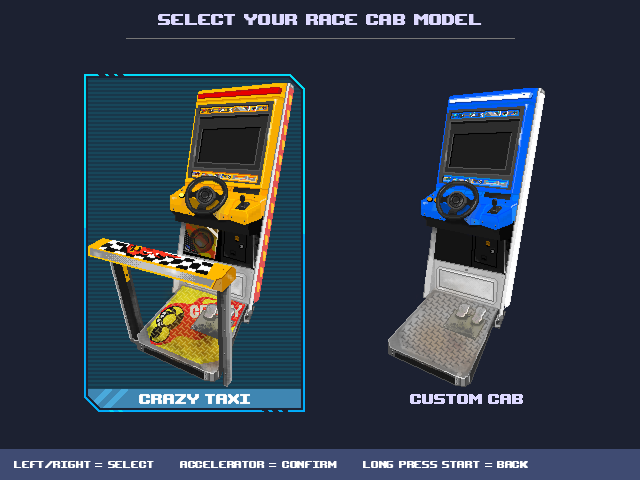
- Crazy Taxi — Crazy Taxi cabinet.
- Custom cab — generic racing cabinet (wheel + pedals).
Turn the wheel left/right to choose, press the accelerator pedal to confirm, long press START to go back.
¶ Step 2b — Number of guns
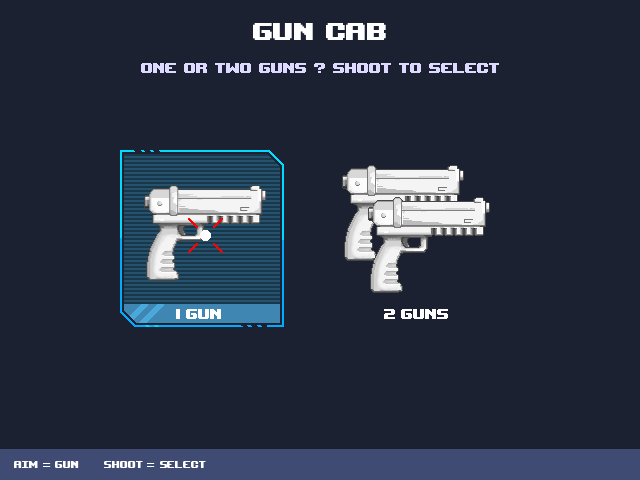
Aim at the 1 Gun or 2 Guns icon with the gun and shoot to confirm.
The configuration is only saved at the end of the wizard. If the cabinet is powered off mid-way, the wizard runs again on the next boot.
¶ 5. Cabinet types
| Type | Description | Players | Analog |
|---|---|---|---|
| Joysticks | Standard joystick cabinet | 1 to 4 (depends on IOBoards) | Optional |
| Race cab | Wheel + pedals | 1 | Wheel + pedals |
| Crazy Taxi | Crazy Taxi cabinet | 1 | Locked on |
| Gun | Light gun(s) | 1 or 2 | X/Y aiming |
The firmware recognizes your IOBoard automatically and only shows the options relevant to the chosen cabinet type.
¶ 6. The Firmware menu
In Firmware mode the menu is shown on the cabinet's screen. The navigation column on the left gives access to six sections:
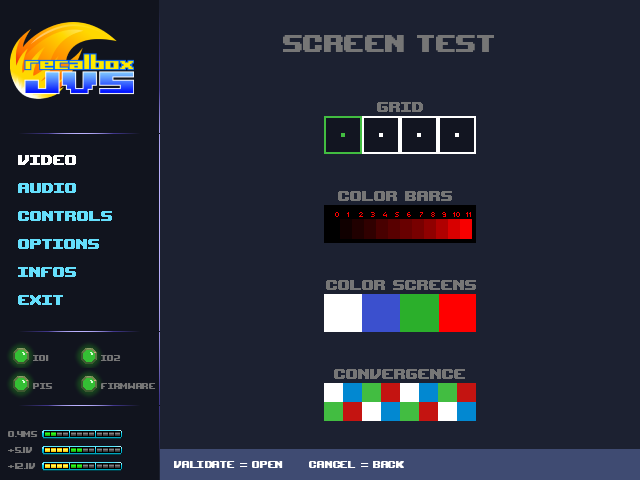
| Section | Contents |
|---|---|
| VIDEO | Display calibration patterns: grid, color bars, color screens, convergence. |
| AUDIO | Speaker test: left, center, right, bass. |
| CONTROLS | Live state of every control: buttons, D-pad, action buttons, coin counters and analog graphs, for all 4 players. Great for spotting a faulty microswitch or fitting a new panel. |
| OPTIONS | Cabinet configuration (see §8). |
| INFOS | System information and monitoring (see §7). |
| EXIT | Leave the Firmware menu. |
At the bottom of the screen, the help bar always shows the available actions, with icons matching the cabinet type (button / wheel + pedal / gun).
The standalone firmware is not available over HDMI. On HD cabinets using the HDMI output, all configuration is done from Recalbox.
¶ 7. The INFOS menu and power monitoring
The INFOS section shows system status:
- IO1 / IO2 — identification of the detected JVS I/O boards.
- Firmware Version — firmware version of the board.
- Recalbox Version — Recalbox version on the Pi 5.
- RPi Temperature — Pi 5 temperature, updated live.
- Runtime — cabinet operating-time counter.
- Voltages — +5 V and +12 V rail voltages.
The navigation column permanently shows, at the bottom, the +5 V / +12 V voltage gauges and the measured latency. Drifting voltage is visible immediately — watch it, a badly set PSU can damage the hardware.
¶ 8. The OPTIONS menu
The first line, read-only, shows the cabinet type: CAB TYPE: ….
The options shown depend on the cabinet type:
| Option | Effect | Shown on |
|---|---|---|
| ENABLE ANALOG | Enables/disables analog inputs. Disabling them reduces input lag. Greyed out if the IOBoard has no analogs or if the cab type doesn't use any. | Joysticks |
| PLAYERS ON CAB | Number of players on the panel (1 or 2). Setting 1 reduces input lag. | Joysticks, Gun |
| LINK MODE | Link mode for two cabinets: 1VS1 (P1 cab 1, P2 cab 2) or 2VS2. |
Joysticks |
| INVERT GUN HORIZONTAL AXIS | Inverts the gun X axis. | Gun |
| INVERT GUN VERTICAL AXIS | Inverts the gun Y axis. | Gun |
| QUICK EXIT MODE | Changes the held-START behaviour: 3 s = direct game exit, 6 s = menu (Service / JVS only). See §10. | All |
| SKIP BOOT LOGO | Skips the firmware boot screen and goes straight to Pi5 mode. Falls back to the Firmware menu if the Pi 5 isn't ready after 10 s. | All |
| REBOOT | Restarts the board. | All |
| RESET CONFIGURATION | Resets the configuration (back to the wizard) and restarts. | All |
On racing cabinets, analog is mandatory, so
ENABLE ANALOGis not shown.
These same settings are also reachable from Recalbox, in the RECALBOX JVS SETTINGS menu (see §14).
¶ 9. Status LEDs — diagnostics
Recalbox JVS exposes four status LEDs, also mirrored in the navigation column: IO1, IO2, Pi5, FIRMWARE.
| LED | Color | Meaning |
|---|---|---|
| 🟢 | Solid green | OK — the item is online and operational |
| 🟡 | Blinking yellow | PENDING — initializing / waiting |
| 🔴 | Solid red | KO — error or item not detected |
| 🔵 | Solid blue | UNKNOWN — undetermined state |
| 🟠 | Blinking orange (all LEDs) | Factory reset armed (see §11) |
| 🟡 | Solid yellow (all LEDs) | Firmware update in progress (see §16) — do not cut power to the cabinet. |
| ⚫ | All off | The Raspberry Pi 5 is powered off. The cabinet powers back on automatically when the Pi 5 boots up. |
Quick LED diagnostics:
| What you see | Diagnosis |
|---|---|
| IO1 red | JVS I/O board not detected — check the JVS/USB cable, the connectors and the IOBoard power. |
| IO1 yellow that never turns green | The IOBoard does not respond properly — often a power issue (+5 V out of range) or wiring. |
| Pi5 red | The Raspberry Pi 5 is not communicating — check it is plugged in and booted, and that the USB bridge is properly seated. |
| FIRMWARE red | Internal firmware error (audio or USB). |
| All LEDs orange | START has been held since boot, the factory reset is arming — release START to cancel. |
¶ 10. START button, exit game and service menu
During gameplay (Pi5 mode), the START button behaviour depends on the QUICK EXIT MODE option (see §8).
Default mode — a long press on START (3 s) brings up a menu:
- EXIT GAME — quits the game and returns to the Recalbox frontend.
- SERVICE MENU — sends the "service menu" command to the game.
- JVS MENU — opens the Firmware menu (cabinet configuration).
QUICK EXIT mode enabled — hold START:
- 3 s → game exits directly, no menu.
- 6 s (keep holding) → Service / JVS menu only (EXIT GAME is hidden since the exit already fired at 3 s).
Long-press on START is only active during gameplay (Pi5 mode). Inside the firmware menus, use the EXIT entry in the navigation column to go back to the game.
Any combo of START + another input (coin, hotkey, volume, wheel, pedal…) automatically cancels the long-press countdown: the combo is sent normally to the Pi 5 and the menu / exit doesn't trigger.
Volume is adjusted with the joystick: START + UP/DOWN.
¶ 11. Factory reset (at startup)
To reset a cabinet without going through the menu:
- Hold START down from the moment the cabinet is powered on.
- As soon as the IOBoard responds, all six LEDs blink orange: the reset is armed.
- Keep START held for 10 seconds → the configuration is wiped and the board reboots into the wizard.
Releasing START before the 10 seconds cancels it. The button must be held from boot: pressing it after startup does nothing.
¶ 12. Link Mode (Versus)
With Link Mode, a single Recalbox JVS drives two JVS cabinets in parallel. Each cabinet has its own video output, its own audio output and its own IOBoard.
- 1vs1 — each player on their own cabinet. Ideal for fighting games and versus shoot'em ups (Marvel vs. Capcom 2, Garou, Capcom vs. SNK, Street Fighter…).
- 2vs2 — up to 4 players at once across two cabinets, for co-op or 4-player versus games (Power Stone 2, Spawn, The Simpsons, TMNT…).
The mode and the player split are set via LINK MODE and PLAYERS ON PANEL in the RECALBOX JVS SETTINGS menu, or via LINK MODE and PLAYERS ON CAB in the firmware OPTIONS menu.
Link Mode does not support cross-platform games like Outtrigger.
¶ 13. Cabinet compatibility
Recalbox JVS works with every cabinet natively fitted with JVS, in standard joystick use. For dedicated cabinets:
¶ Naomi Universal Cabinet (N.U.C.)
The most widespread JVS cabinet. Recalbox JVS is optimized for it:
- 15 kHz games with 240p Grid for authentic rendering (Neo Geo, Capcom, SNK…);
- native 31 kHz for Naomi, Atomiswave and all 480p games;
- option to upscale 15 kHz 3D games to 31 kHz.
¶ Race Cabs
Support for Naomi Race Cabs: Crazy Taxi, 18 Wheelers, Jumbo Safari. The whole arcade racing catalog becomes playable, as well as console racing games (Mario Kart, Gran Turismo, Burnout…).
Support for other JVS Race Cabs is experimental. Force feedback is not supported in this version.
¶ Gun Cabs
Support for Naomi Gun Cabs: Lupin the Third, Confidential Mission, House of the Dead 3 and compatible cabinets. Time Crisis, Virtua Cop, House of the Dead, Silent Scope, Operation Wolf are playable.
- a USB pedal can be added for games that use one (the cover function of Time Crisis);
- calibration is done once for all games;
- outputs (LEDs, lamps) and recoil are supported.
See also the Lightguns on Recalbox page.
Support for other JVS Gun Cabs is experimental.
¶ HD cabinets (Vewlix, Noir Cabinet, Lindbergh)
Flat-screen cabinets are supported. The image is delivered:
- via the VGA output if the screen has a VGA input — 16:9 with bezels, or 4:3;
- via the Raspberry Pi 5's native HDMI output — full Pi 5 graphics quality, CRT shaders, filters, arcade bezels.
Over HDMI the standalone firmware is not available: configuration is done from Recalbox. Some HD cabinet replicas use JAMMA — check your cabinet's compatibility, and have a look at Recalbox RGB JAMMA.
¶ 14. The Recalbox side (Raspberry Pi 5)
Recalbox detects the board automatically. Controls appear as standard USB gamepads (joysticks or guns depending on the cabinet), and a RECALBOX JVS SETTINGS menu is added to EmulationStation.
¶ The RECALBOX JVS SETTINGS menu
This menu is organised in sections:
- JVS DISPLAY —
MENU RESOLUTION,SCREEN TYPE,PRIORITY TO HDMI,SELECT GAME RESOLUTION AT LAUNCH,240P GRID,SUPERREZ MULTIPLIER,AVOID INTERLACED MODESand its TATE/handheld variant. On HDMI cabinets, theINTEGER SCALE (PIXEL PERFECT)andSHADERS SETentries replace the CRT options. - JVS CABINET —
CAB TYPE,PLAYERS ON PANEL,LINK MODE,PANEL TYPE,QUICK EXIT,SKIP BOOT LOGO, and on gun cabinetsFLIP GUN X AXIS/FLIP GUN Y AXIS. - JVS CONTROLS —
NEOGEO/PGM LAYOUT P1andP2,START+BTN1 = CREDIT,START+BTN = HK+BTN,START+UP/DOWN = VOLUME. - EXPERIMENTAL —
REDUCED LATENCY (EXPERIMENTAL)andRUN AHEAD (EXPERIMENTAL).
Screen calibration from the Recalbox menu is not available yet for Recalbox JVS: use the test patterns in the VIDEO section of the Firmware menu and your monitor's own settings.
¶ Light guns
Recalbox JVS guns are recognized as pointing devices. When the gun's secondary button is held (off-screen aiming), the analog axes are blocked: only directions are sent, then resume when released.
¶ Power-off and wake-up
When you shut Recalbox down from EmulationStation (or via poweroff), Recalbox JVS automatically cuts the audio amp, video signal and LEDs along with the Pi 5. The cabinet looks fully powered off. On the next Pi 5 boot, Recalbox JVS wakes up automatically as soon as the Pi 5 re-enumerates its USB.
¶ 15. Troubleshooting
| Symptom | Check |
|---|---|
| No video | Check the VGA connection and that the screen is set to the matching input. |
| IO1 LED red / cabinet has no controls | IOBoard not detected — JVS/USB cable, connectors, IOBoard power. |
| IO1 LED stuck yellow, erratic JVS | Power issue: keep +5 V between 5.0 and 5.25 V. Also check the JVS cable. See the voltage gauges in the firmware (§7). |
| Board not detected by Recalbox | Restart the cabinet. If the RECALBOX JVS SETTINGS menu does not appear in EmulationStation, the board is not seen by the Pi 5 — check the USB connection between Recalbox JVS and the Pi 5. |
| Wrong cabinet type | Open the OPTIONS menu (§8): the first line CAB TYPE: … shows the current type. If incorrect, reset (§11). |
¶ Force a firmware reinstall after a failure
If the cabinet has become unresponsive or looks frozen, you can force a reinstall of the Recalbox JVS firmware, even if it doesn't work at all anymore.
How to spot this case: on the Recalbox JVS board, only the +5 V and +12 V power lights are on. All the other LEDs (IO1, IO2, Pi5, FIRMWARE, logo) stay dark.
Procedure:
- Power off the cabinet, remove the SD card from the Raspberry Pi 5 and plug it into your PC.
- On the
RECALBOXpartition, create an empty file named exactlyjvs-force-flash, at the root. - Eject the SD card cleanly, put it back into the Pi 5 and power the cabinet on.
- Recalbox detects the file and reinstalls the firmware automatically. The screen stays off during the operation — that's normal.
- Once done, the cabinet reboots and returns to normal operation.
⚠️ Do not cut power during the reinstall.
If this procedure still fails, ask for help on the Recalbox Discord server.
¶ 16. Firmware update
The firmware ships with Recalbox. The Raspberry Pi 5 reflashes the firmware automatically if it is outdated after a Recalbox update — no action required on your end.
⚠️ During the update, all the cabinet LEDs turn solid yellow. Do not power off the cabinet until the LEDs are back to their normal state — cutting power during the flash can brick the board.
¶ Recalbox JVS updates
The Recalbox JVS follows a dedicated update channel. It is set in recalbox.conf:
updates.type=jvs
With this channel, UPDATES in the main menu offers the builds meant for the Recalbox JVS rather than the generic Raspberry Pi 5 ones.
¶ 17. Known limitations
- The Raspberry Pi 5 and the microSD card are not included (unless in a specific bundle).
- No commercial games, BIOS or licensed ROMs are provided.
- JVS cabinets exist in many variants, sometimes modified — check your cabinet before installation.
- The standalone firmware is not available over HDMI.
- Non-Naomi Race Cabs and Gun Cabs: experimental support. Force feedback not supported.
For any question, join the Recalbox Discord server.