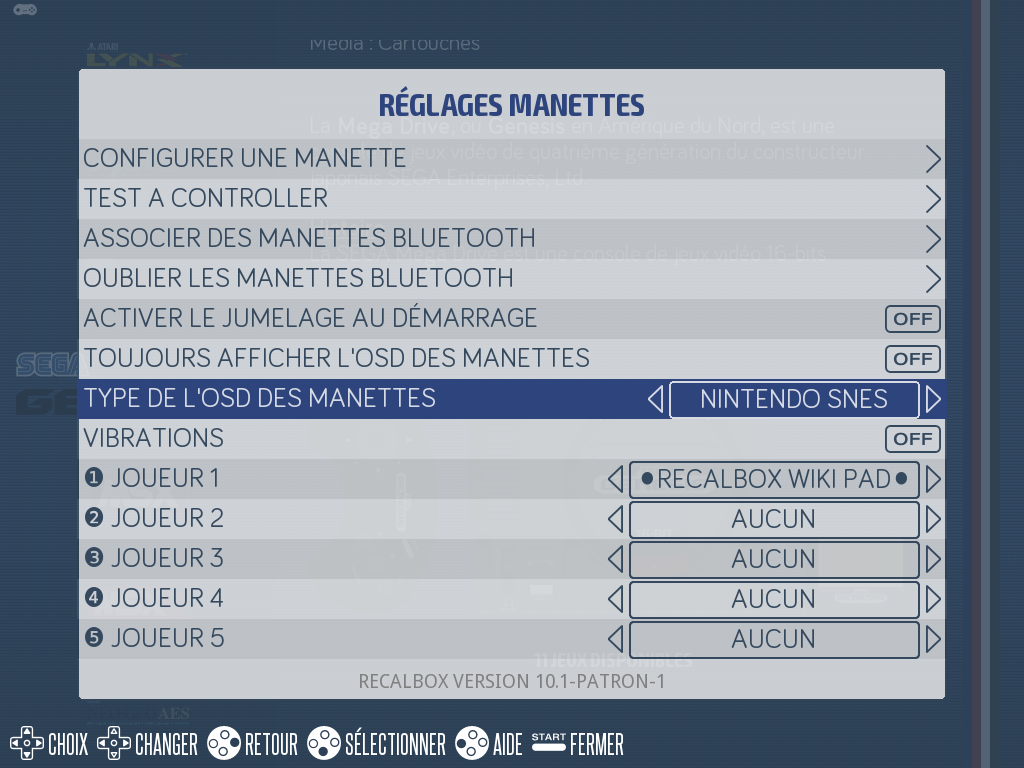
This guide covers connecting a controller to Recalbox for the first time: over USB, over Bluetooth, and what happens if your controller is not recognized.
The good news: in the vast majority of cases, there is nothing to configure. Recalbox ships with the configuration of many controllers (Xbox, Joy-Con and Nintendo Switch Online controllers, Steam Deck…) and automatically recognizes every controller known to the SDL database. If yours is not one of them, the visual configurator starts by itself to guide you.
¶ USB controller
- Plug the controller into a USB port of your Recalbox.
- Press a button: if the controller is recognized, it is usable immediately.
- If Recalbox does not know it, the visual configuration wizard starts automatically — see "Controller not recognized?" below.
¶ Bluetooth controller
¶ On the very first boot
As long as no controller is configured, Recalbox starts Bluetooth pairing by itself at boot (AUTO PAIR ON BOOT setting, enabled by default). Just put your controller in pairing mode (see the table below): it is detected and paired automatically, without touching anything on screen.
¶ From the menu
To pair a Bluetooth controller at any time, using an already working controller (plugged in over USB for instance) or a keyboard:
- On the main screen, press
STARTto open the menu. - Go to
CONTROLLER SETTINGS. - Select
PAIR BLUETOOTH CONTROLLERS. A message warns you that pairing will run for several minutes; confirm. - Put your controller in pairing mode: as soon as it is detected, it is paired automatically — you don't have to select anything. The next window lists the detected Bluetooth devices for information purposes only.
- You can close that window with
CLOSE: pairing keeps running as long as the Bluetooth icon (with its progress bar) is displayed on the top left of the screen, for about 5 minutes.
Once paired, the controller reconnects on its own: on the next boots, simply turn it on.
¶ Putting your controller in pairing mode
Entering pairing mode depends on the controller — a few common examples, with the controller off or disconnected:
| Controller | Pairing mode |
|---|---|
| Sony DualShock 4 / DualSense | Hold SHARE (CREATE on DualSense) + PS until the light bar flashes rapidly |
| Xbox One / Series (Bluetooth) | Turn it on with the Xbox button, then hold the pairing button (on the top edge) until the logo flashes rapidly |
| Nintendo Switch Pro / Joy-Con | Hold the SYNC button until the LEDs sweep back and forth |
| 8BitDo | Depends on the model, usually the PAIR button for 3 seconds — see 8BitDo on Recalbox for which mode to pick (D-Input/Android recommended) and the exact procedure |
For anything else, check your controller's manual.
¶ Reconnection issues
If an already-paired controller refuses to reconnect, the simplest fix is to start over: START → CONTROLLER SETTINGS → FORGET BLUETOOTH CONTROLLERS removes all pairings, then pair your controller again as described above.
¶ Controller not recognized? The visual configurator
If Recalbox does not know your controller, pressing one of its buttons automatically starts the configuration wizard: your controller is displayed on screen and each button to press is highlighted, one at a time.
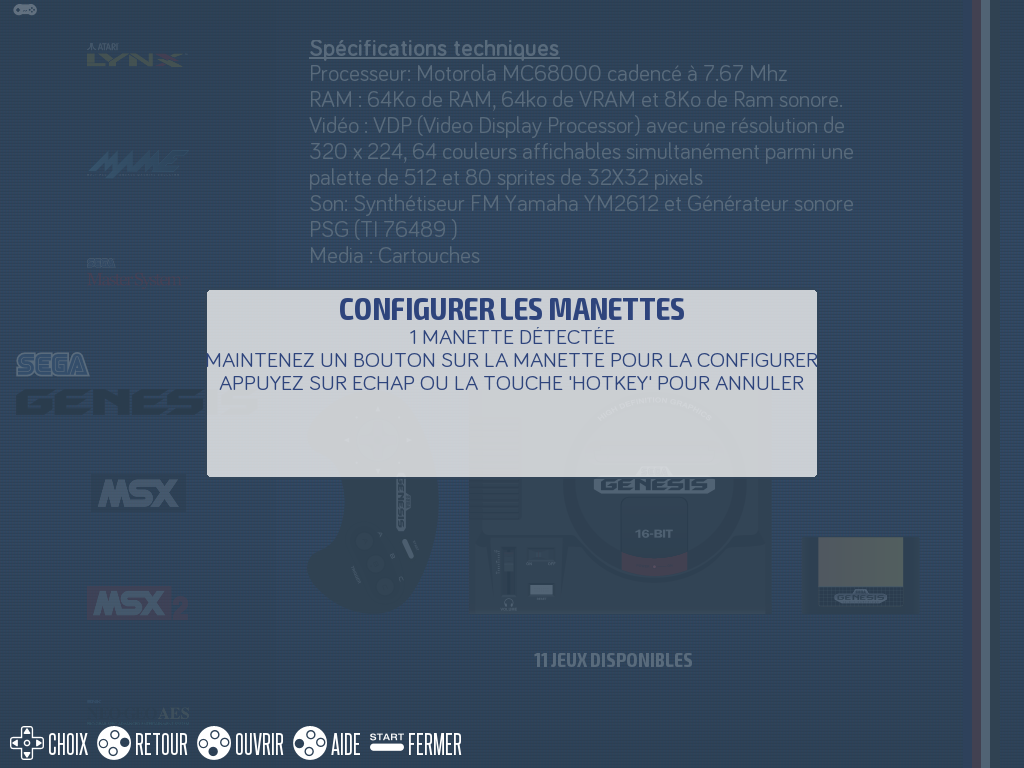
➡️ The complete step-by-step guide: Configure a controller (you can also start it manually via CONTROLLER SETTINGS → CONFIGURE A CONTROLLER).
¶ The CONTROLLER SETTINGS menu
START → CONTROLLER SETTINGS gathers everything controller-related:
| Entry | Purpose |
|---|---|
CONFIGURE A CONTROLLER |
Starts the visual configurator |
TEST A CONTROLLER |
Tests an already-configured controller (every pressed button lights up on screen) |
PAIR BLUETOOTH CONTROLLERS |
Starts Bluetooth pairing (see above) |
FORGET BLUETOOTH CONTROLLERS |
Removes all Bluetooth pairings |
AUTO PAIR ON BOOT |
Automatic Bluetooth pairing at boot as long as no controller is configured (enabled by default) |
RUMBLE |
Turns vibration on or off |
ALWAYS SHOW PAD OSD / PAD OSD TYPE |
Permanent display (and style) of the on-screen controller indicator |
❶ INPUT P1, ❷ INPUT P2… |
Chooses which controller belongs to which player |