
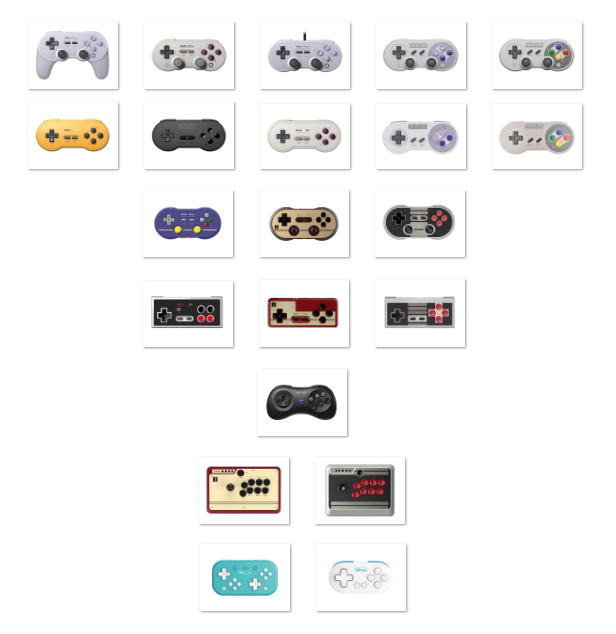
For every controller, prefer the D-Input mode (Android). If it does not work, try the X-Input mode (Windows / Xbox).
On each controller, a start combination or a switch selects this mode: refer to the table below, to your controller's manual and to the FAQ at the bottom of this page. Once the controller is on, pairing works as usual — see pairing a Bluetooth controller.
¶ Supported 8BitDo controllers
¶ Xbox-style controllers
| Image | Controller | USB | Bluetooth | Start mode | BT pairing | BT reset | Manual |
|---|---|---|---|---|---|---|---|
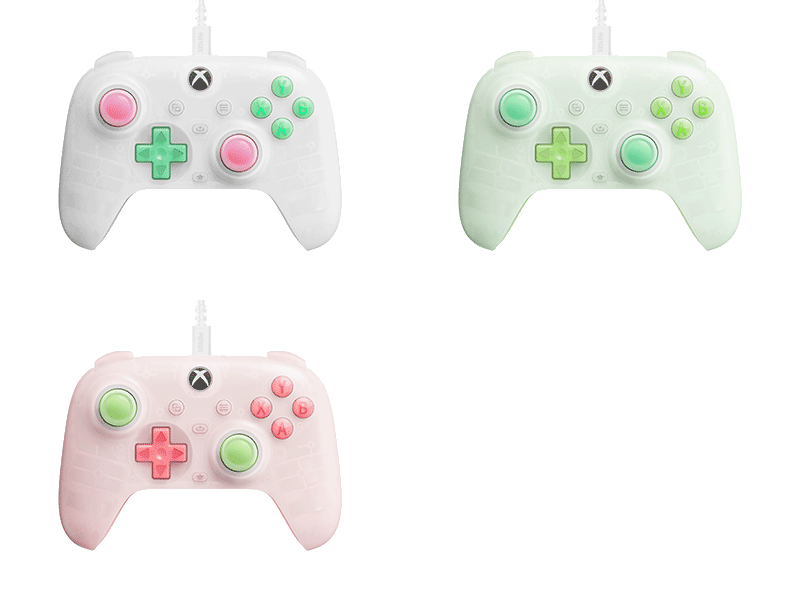 |
Ultimate Mini Wired Controller for Xbox | ✅ | ❌ | n/a | n/a | n/a | See the manual on the 8BitDo website |
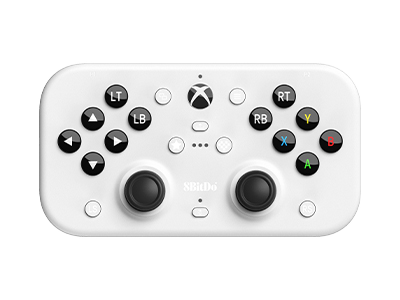 |
Lite SE Wireless Controller for Xbox | ✅ | ☑️ | XBOX | n/a | n/a | See the manual on the 8BitDo website |
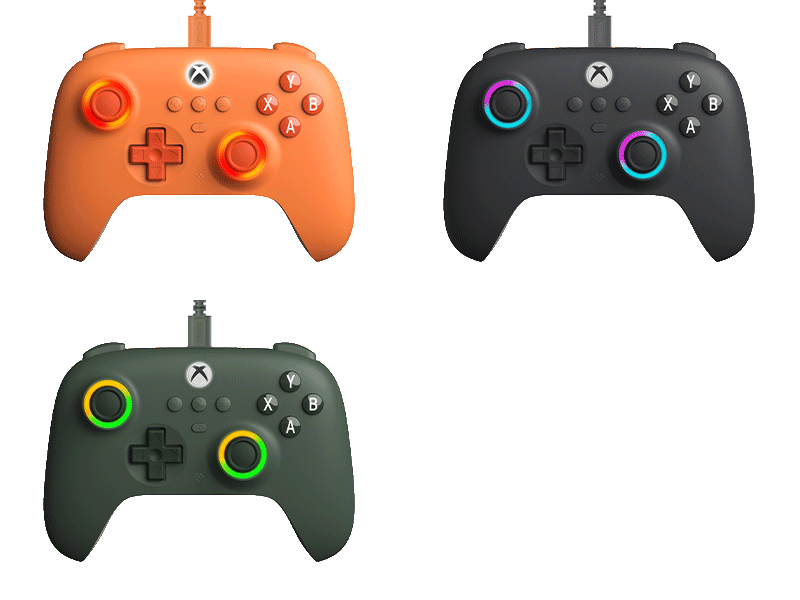 |
Ultimate C Wired Controller for Xbox | ✅ | ❌ | n/a | n/a | n/a | See the manual on the 8BitDo website |
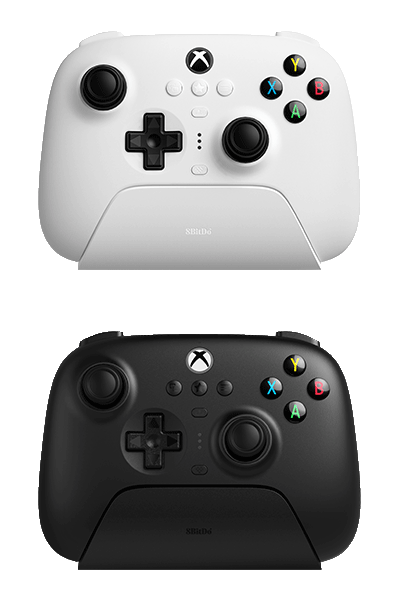 |
Ultimate 3-mode Controller for Xbox | ✅ | ☑️ | XBOX | Hold the pairing button for 3 seconds | Hold the pairing button for 3 seconds | See the manual on the 8BitDo website |
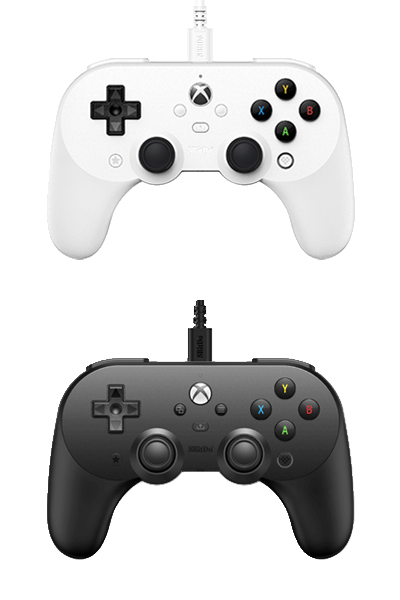 |
Pro 2 Wired Controller for Xbox (Hall) | ✅ | ❌ | n/a | n/a | n/a | See the manual on the 8BitDo website |
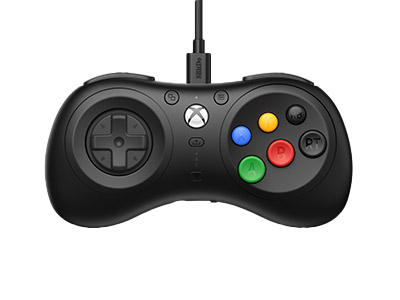 |
M30 Wired Controller for Xbox | ✅ | ❌ | n/a | n/a | n/a | See the manual on the 8BitDo website |
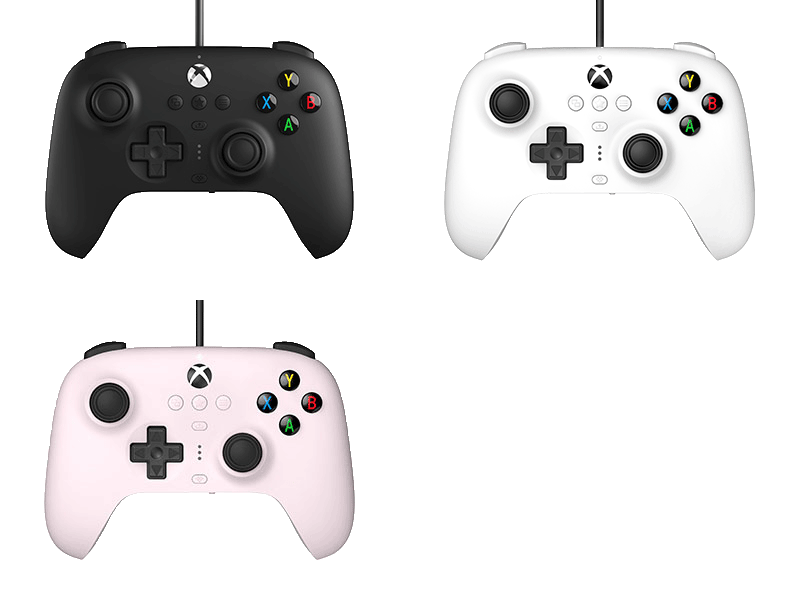 |
Ultimate Wired Controller Xbox | ✅ | ❌ | n/a | n/a | n/a | See the manual on the 8BitDo website |
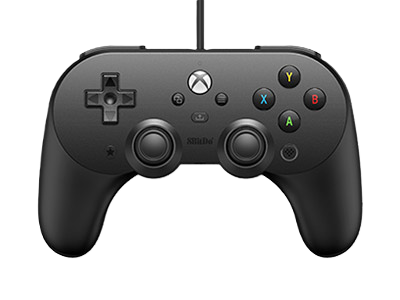 |
Pro 2 Wired Controller Xbox | ✅ | ❌ | n/a | n/a | n/a | See the manual on the 8BitDo website |
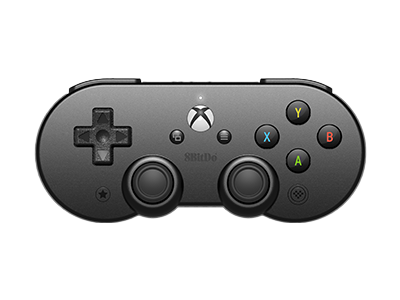 |
SN30 Pro for Android | ✅ | ☑️ | XBOX | Hold the Star button for 3 seconds | Hold the Star button for 3 seconds | See the manual on the 8BitDo website |
¶ Ultimate-style controllers
| Image | Controller | USB | Bluetooth | Start mode | BT pairing | BT reset | Manual |
|---|---|---|---|---|---|---|---|
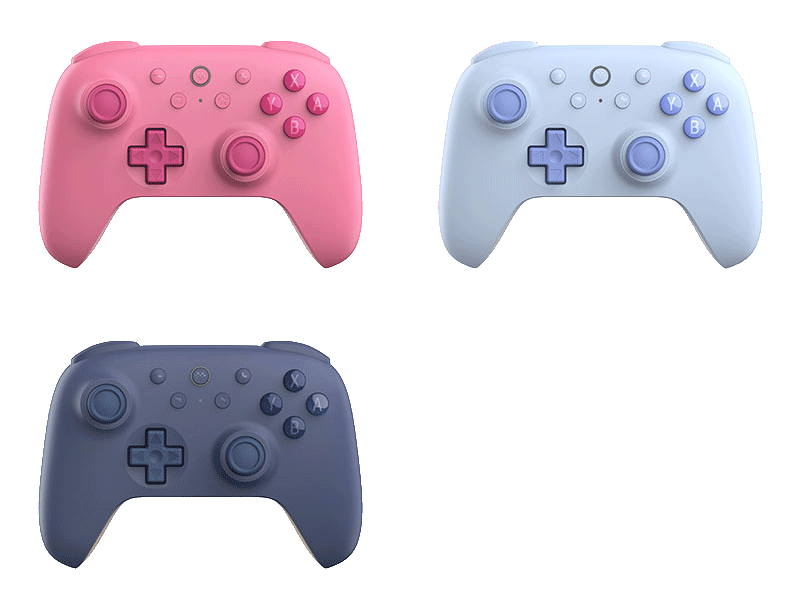 |
Ultimate 2C Bluetooth Controller | ❌ | ❌ | n/a | n/a | n/a | See the manual on the 8BitDo website |
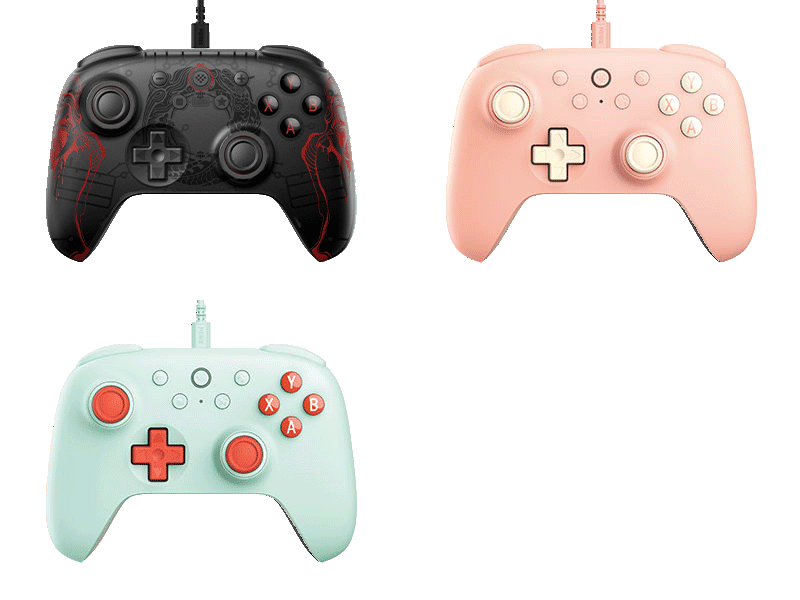 |
Ultimate 2C Wired Controller | ✅ | ❌ | Hold B | n/a | n/a | See the manual on the 8BitDo website |
 |
Ultimate C 2.4G Wireless Controller | ✅ | ☑️ | HOME | HOME + B | HOME + B | See the manual on the 8BitDo website |
 |
Ultimate 2.4G Wireless Controller (⚠️ D mode only) | ✅ | ☑️ | HOME | Hold the Star button for 3 seconds | Toggle the mode switch (re-pairing needed after every change) | See the manual on the 8BitDo website |
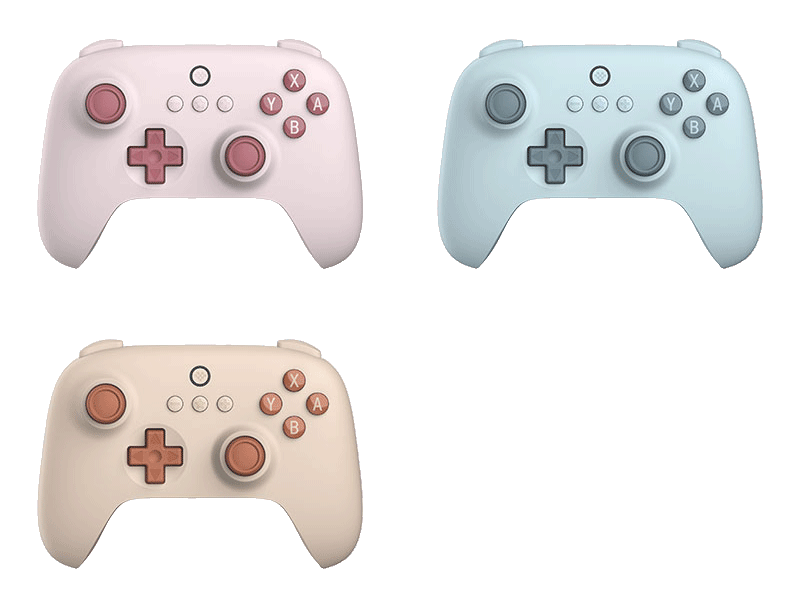 |
Ultimate C Bluetooth Controller | ❌ | ❌ | n/a | n/a | n/a | See the manual on the 8BitDo website |
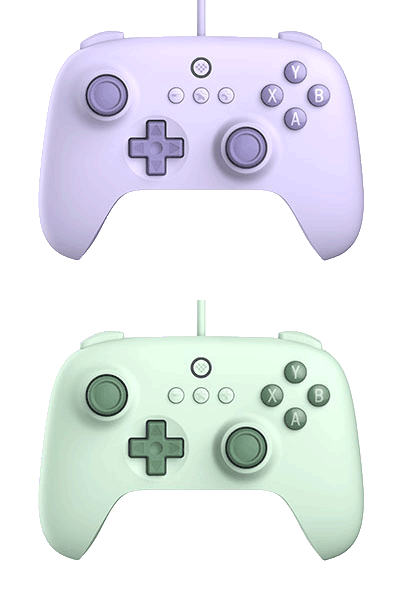 |
Ultimate C Wired | ✅ | ❌ | Hold B | n/a | n/a | See the manual on the 8BitDo website |
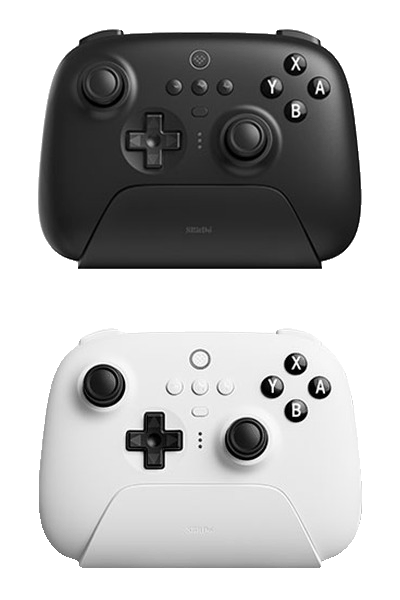 |
Ultimate Bluetooth Controller | ✅ | ☑️ | HOME | Hold the Pair button for 3 seconds | Hold the Pair button for 3 seconds | See the manual on the 8BitDo website |
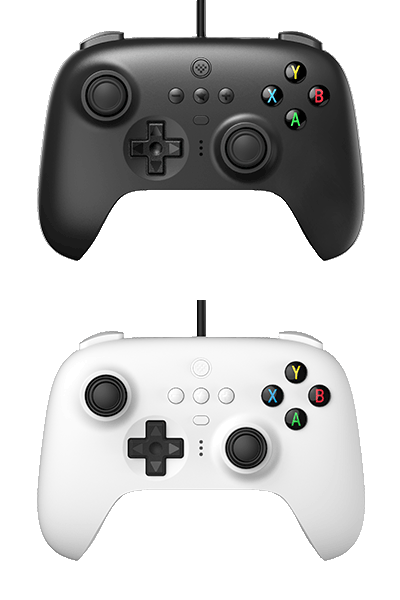 |
Ultimate Wired Controller | ✅ | ❌ | n/a | n/a | n/a | See the manual on the 8BitDo website |
¶ N64-style controllers
| Image | Controller | USB | Bluetooth | Start mode | BT pairing | BT reset | Manual |
|---|---|---|---|---|---|---|---|
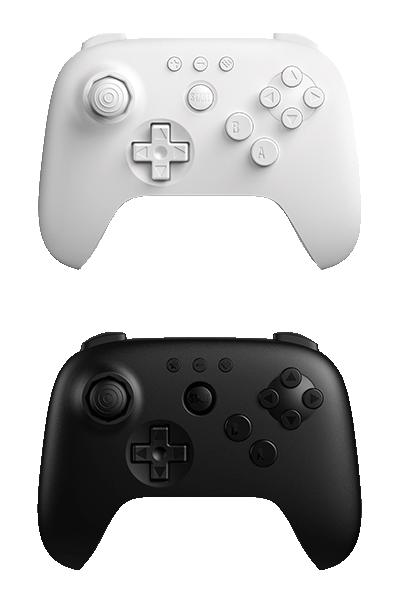 |
64 Controller | ✅ | ☑️ | START | Hold the Pair button for 3 seconds | Hold the Pair button for 3 seconds | See the manual on the 8BitDo website |
¶ SNES-style controllers
| Image | Controller | USB | Bluetooth | Start mode | BT pairing | BT reset | Manual |
|---|---|---|---|---|---|---|---|
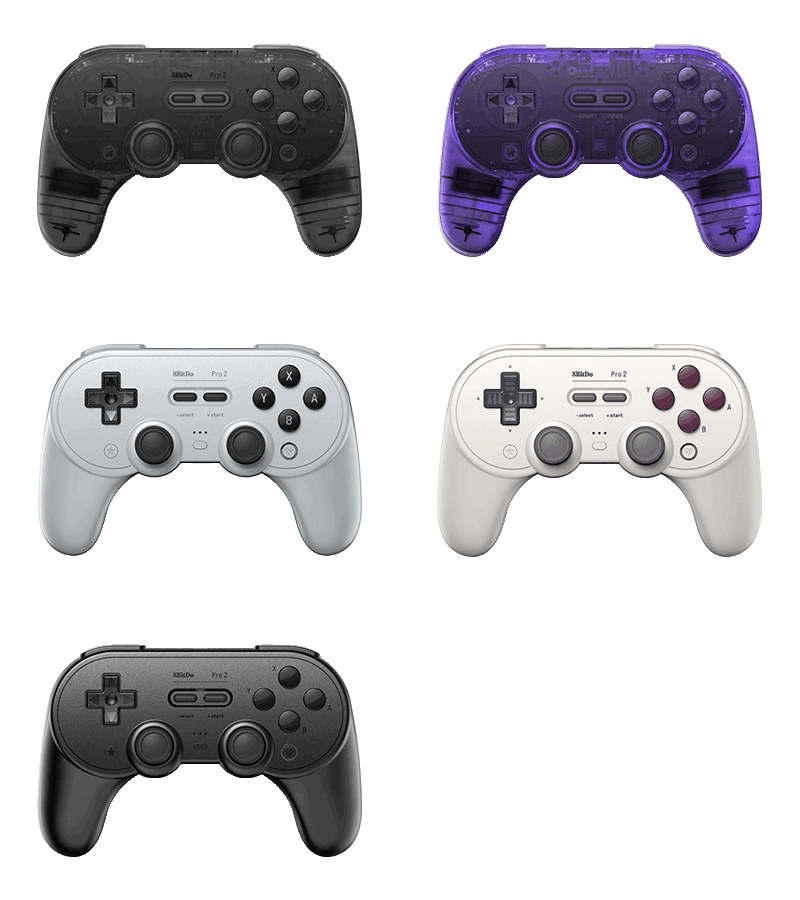 |
Pro 2 | ✅ | ☑️ | START | Hold the Pair button for 3 seconds | Hold the Pair button for 3 seconds | See the manual on the 8BitDo website |
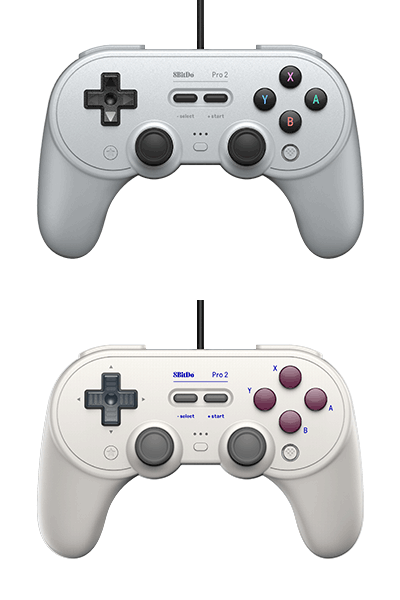 |
Pro 2 Wired Controller | ✅ | ❌ | n/a | n/a | n/a | See the manual on the 8BitDo website |
 |
SN30 Pro+ | ✅ | ☑️ | START + B | Hold the Pair button for 2 seconds | Hold the Pair button for 2 seconds | See the manual on the 8BitDo website |
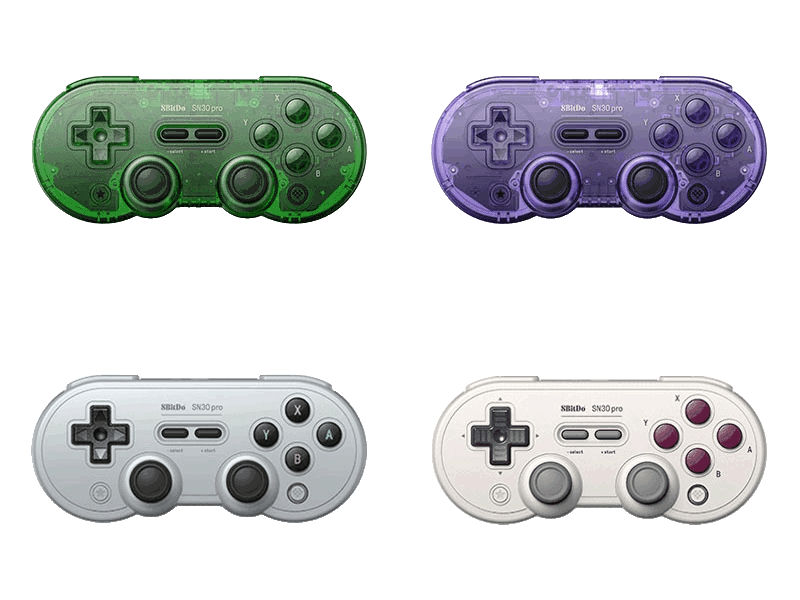 |
SN30 Pro 2 | ✅ | ☑️ | START + B | Hold the Pair button for 3 seconds | Hold the Select button for 3 seconds | See the manual on the 8BitDo website |
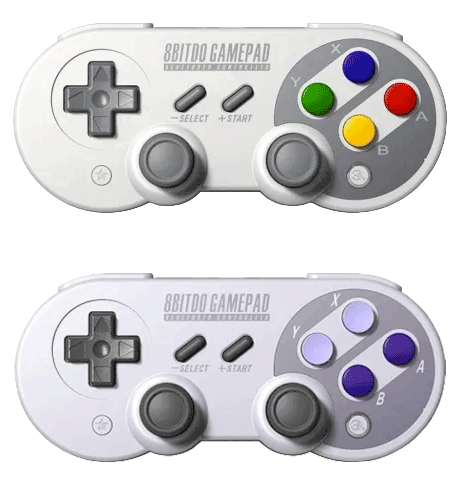 |
SN30 Pro & SF30 Pro | ✅ | ☑️ | START + B | Hold the Pair button for 3 seconds | Hold the Select button for 3 seconds | See the manual on the 8BitDo website |
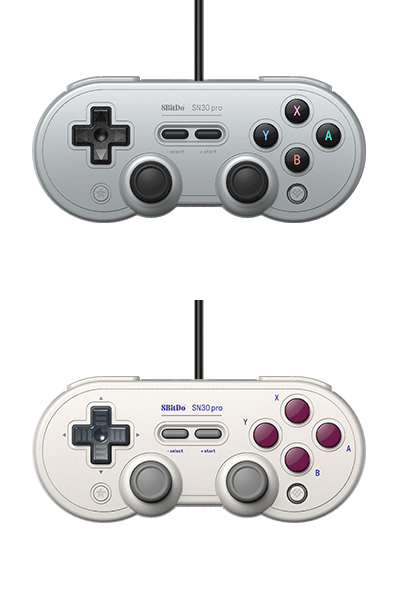 |
SN30 Pro USB | ❓ | n/a | n/a | n/a | n/a | See the manual on the 8BitDo website |
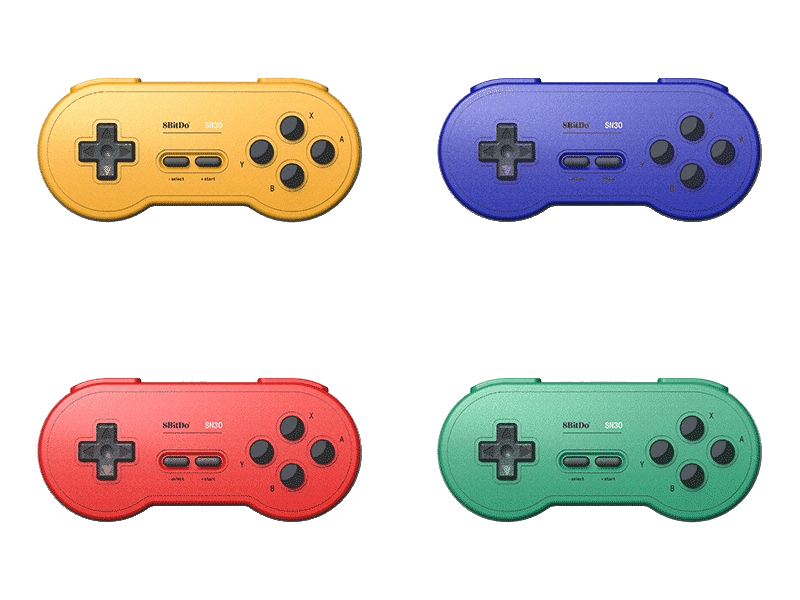 |
SN30 GP 2 | ❓ | ❓ | B + START | Hold the Select button for 3 seconds | Hold the Select button for 3 seconds | See the manual on the 8BitDo website |
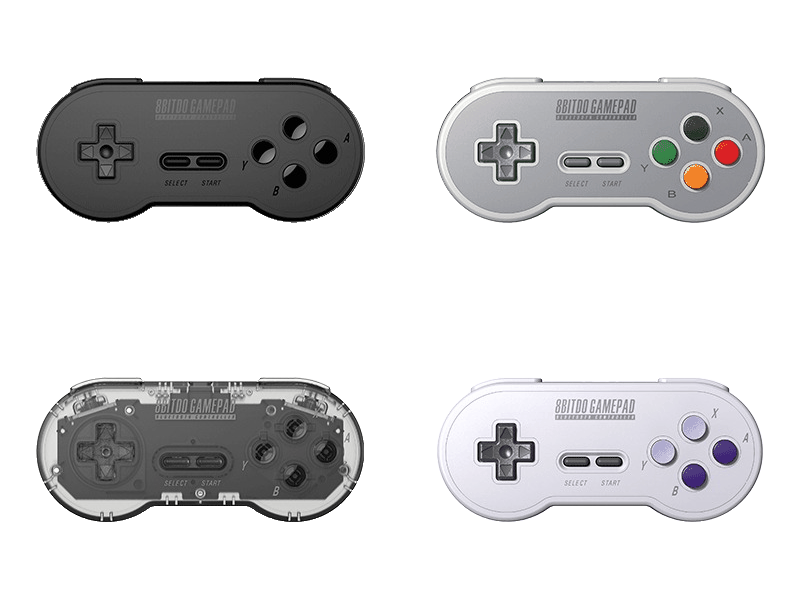 |
SN30 Retro Set | ❓ | ❓ | START | Hold the Select button for 3 seconds | Hold the Select button for 3 seconds | See the manual on the 8BitDo website |
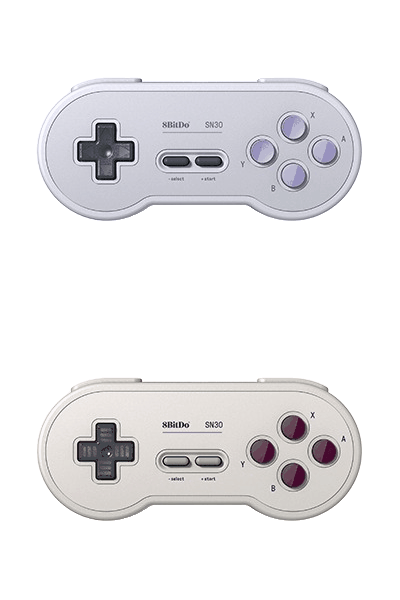 |
SN30 | ✅ | ☑️ | START + R | Hold the Select button for 3 seconds | Hold the Select button for 3 seconds | See the manual on the 8BitDo website |
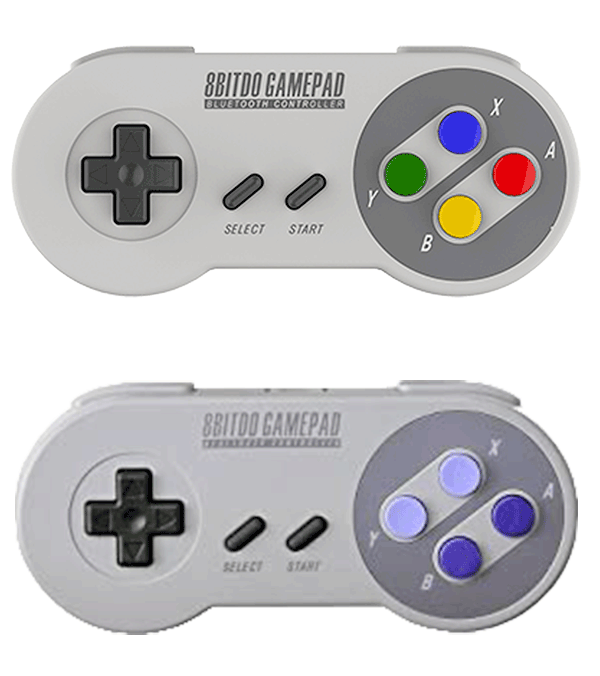 |
SF30 & SFC30 | ✅ | ☑️ | START + R | Hold the Select button for 3 seconds | Hold the Select button for 3 seconds | See the manual on the 8BitDo website |
 |
SNES Mod Kit (Original) | n/a | ☑️ | START + B | Hold the Select button for 3 seconds | Hold the Select button for 3 seconds | See the manual on the 8BitDo website |
¶ SNES / NES-style controllers
| Image | Controller | USB | BT | Start mode | BT pairing | BT reset | Manual |
|---|---|---|---|---|---|---|---|
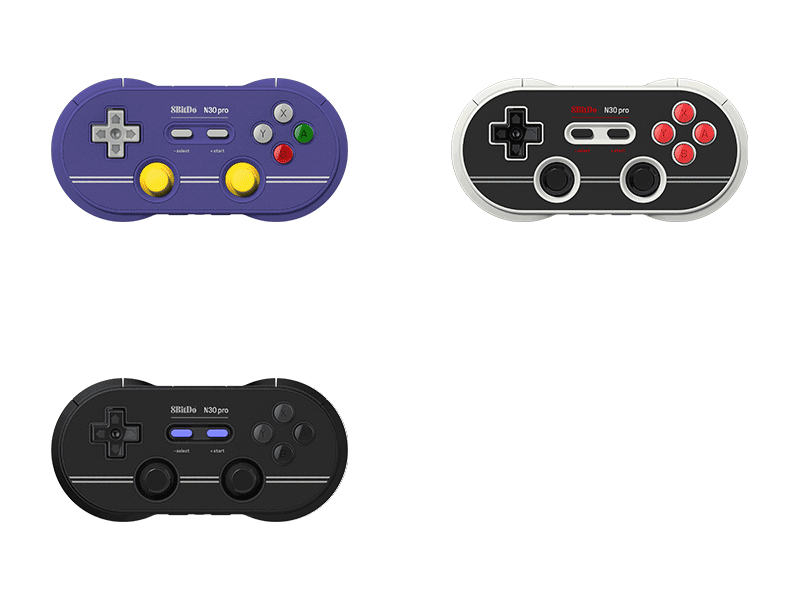 |
N30 Pro 2 | ❓ | ❓ | START | Hold the Pair button for 1 second | Hold the Pair button for 3 seconds | See the manual on the 8BitDo website |
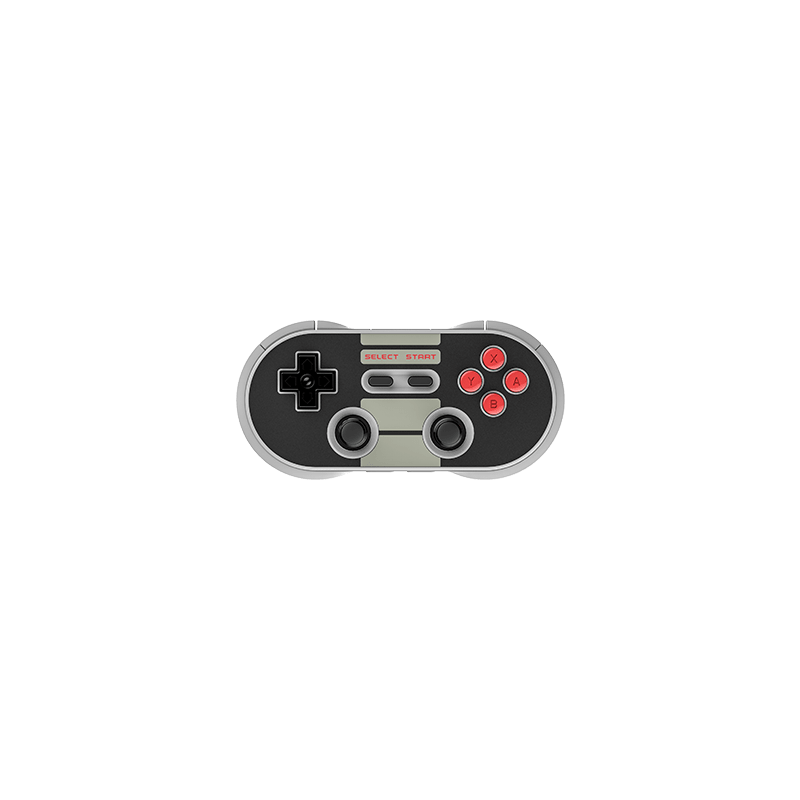 |
N30 & NES30 Pro | ✅ | ☑️ | POWER | Hold the Pair button for 1 second | Hold the Pair button for 3 seconds | See the manual on the 8BitDo website |
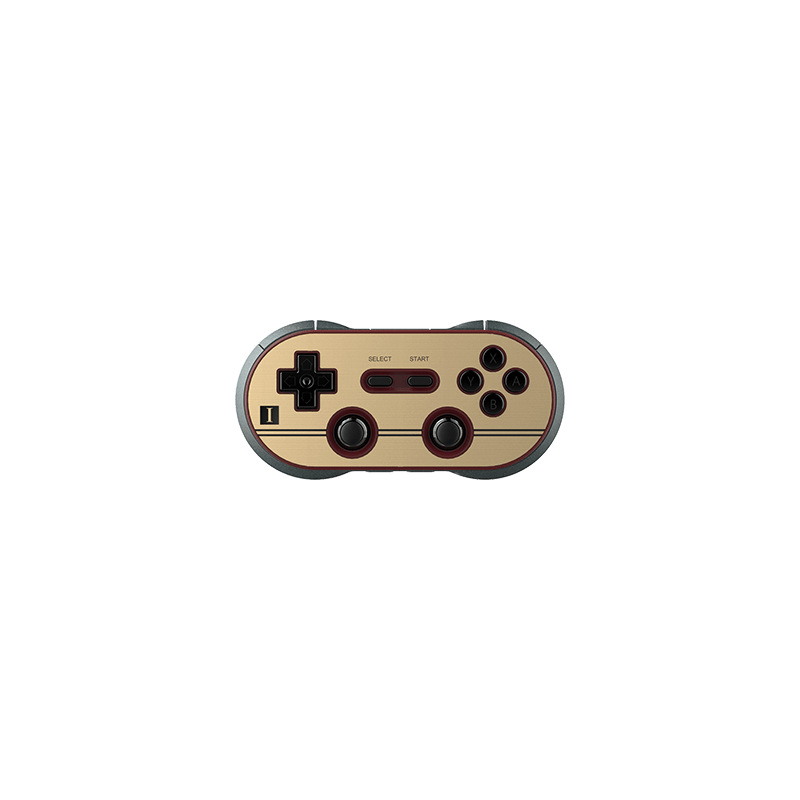 |
F30 & FC30 Pro | ✅ | ☑️ | POWER + X | Hold the Pair button for 1 second | Hold the Pair button for 3 seconds | See the manual on the 8BitDo website |
¶ NES-style controllers
| Image | Controller | USB | Bluetooth | Start mode | BT pairing | BT reset | Manual |
|---|---|---|---|---|---|---|---|
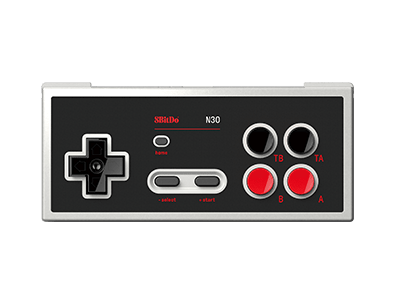 |
N30 NS | ❌ | ☑️ | START | Hold the Select button for 3 seconds | Hold the Select button for 3 seconds | See the manual on the 8BitDo website |
 |
N30 & NES30 | ✅ | ☑️ | START + R | Hold the Select button for 3 seconds | Hold the Select button for 3 seconds | See the manual on the 8BitDo website |
 |
F30 & FC30 | ✅ | ☑️ | START + R | Hold the Select button for 3 seconds | Hold the Select button for 3 seconds | See the manual on the 8BitDo website |
¶ Mega Drive-style controllers
| Image | Controller | USB | Bluetooth | Start mode | BT pairing | BT reset | Manual |
|---|---|---|---|---|---|---|---|
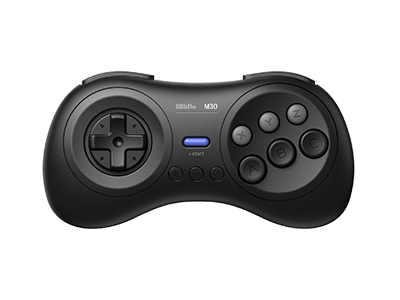 |
M30 | ✅ | ☑️ | START + B | Hold the Select button for 1 second | Hold the Select button for 3 seconds | See the manual on the 8BitDo website |
 |
M30 2.4G | ❌ | ❌ | - | START | START | See the manual on the 8BitDo website |
¶ Arcade-style controllers
| Image | Controller | USB | Bluetooth | Start mode | BT pairing | BT reset | Manual |
|---|---|---|---|---|---|---|---|
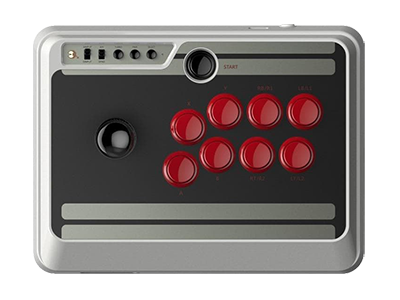 |
N30 & NES30 Arcade Stick | ✅ | ☑️ | HOME | Hold the Select button for 3 seconds | Hold the Select button for 3 seconds | See the manual on the 8BitDo website |
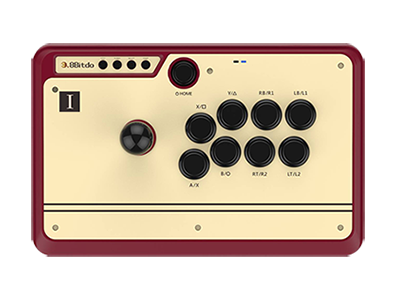 |
F30 & FC30 Arcade Stick | ✅ | ☑️ | HOME | Hold the Select button for 3 seconds | Hold the Select button for 3 seconds | See the manual on the 8BitDo website |
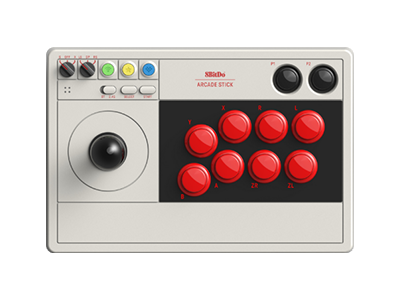 |
Arcade Stick | ❓ | ❓ | ❓ | ❓ | ❓ | See the manual on the 8BitDo website |
¶ Other controller styles
| Image | Controller | USB | Bluetooth | Start mode | BT pairing | BT reset | Manual |
|---|---|---|---|---|---|---|---|
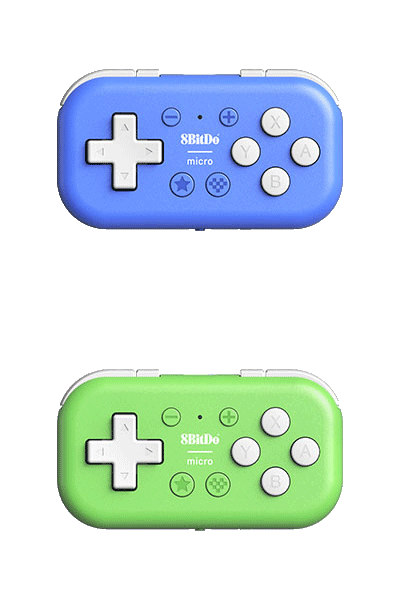 |
Micro (⚠️ D mode only) | ✅ | ☑️ | HOME | Hold the Pair button for 1 second | Hold the Pair button for 1 second | See the manual on the 8BitDo website |
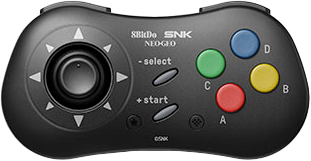 |
NEOGEO Wireless Controller | ❓ | ❓ | START | Press the Pair button | Hold the Pair button for 1 second | See the manual on the 8BitDo website |
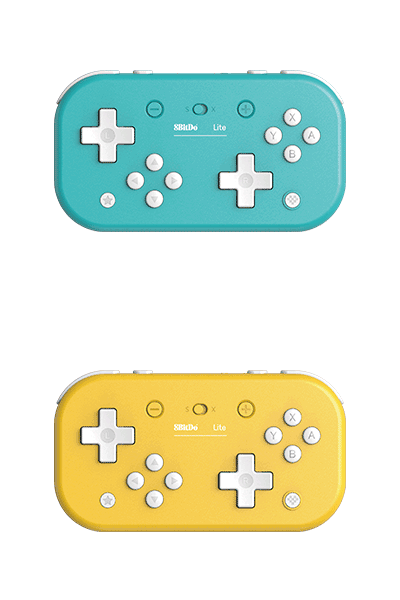 |
Lite | ✅ | ☑️ | HOME | Hold the Pair button for 2 seconds | Hold the Pair button for 2 seconds | See the manual on the 8BitDo website |
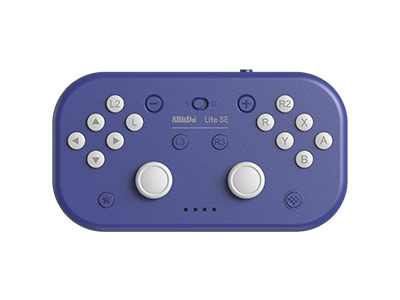 |
Lite SE | ❓ | ❓ | ❓ | ❓ | ❓ | ❓ |
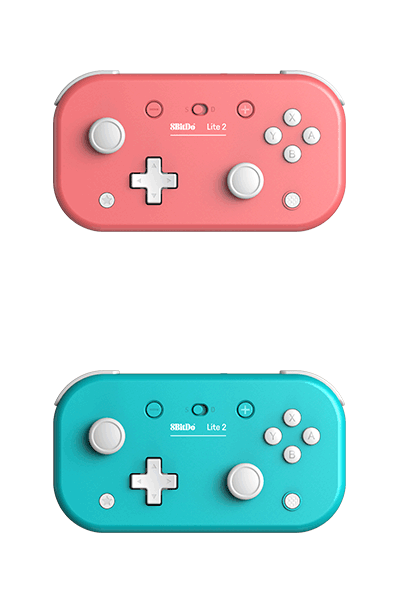 |
Lite 2 | ❓ | ❓ | ❓ | ❓ | ❓ | ❓ |
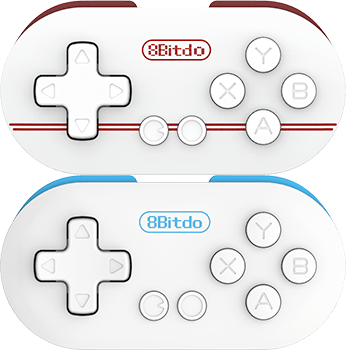 |
Zero | ❌ | ☑️ | START + R1 | Hold the Select button for 3 seconds | Hold the Select button for 3 seconds | See the manual on the 8BitDo website |
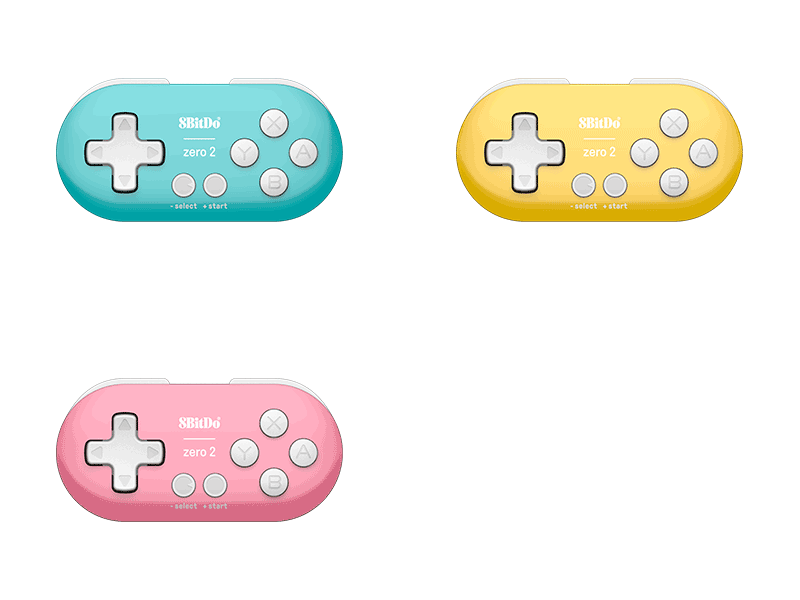 |
Zero 2 | ✅ | ☑️ | B + START | Hold the Select button for 3 seconds | Hold the Select button for 3 seconds | See the manual on the 8BitDo website |
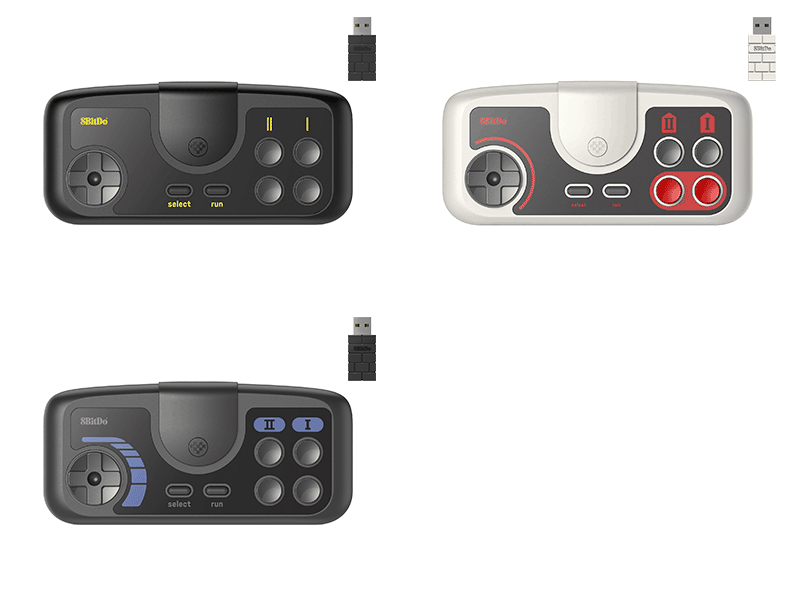 |
PCE / TG16 / PCE Core | ❌ | ❌ | n/a | n/a | n/a | See the manual on the 8BitDo website |
¶ Supported 8BitDo dongles
| Image | Dongle | Recalbox compatibility | Compatible controllers |
|---|---|---|---|
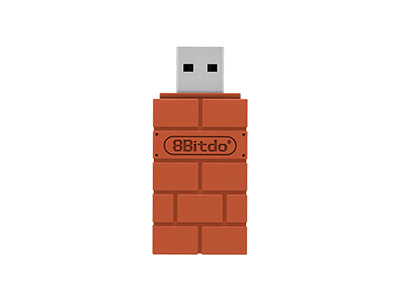 |
USB Wireless Adapter (X-Input mode) | ✅ | PS3, PS4 (Pro), PS5, Xbox One S, Xbox One X, Wiimote, Wii U Pro, Switch Joy-Con, Switch Pro, 8BitDo controllers and sticks |
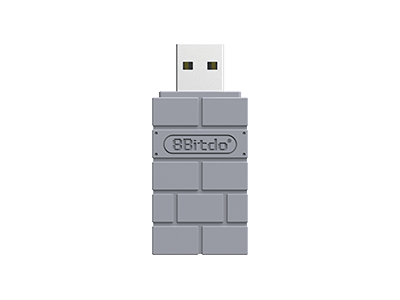 |
USB Adapter for PS Classic (X-Input mode) | ✅ | PS3, PS4, Wiimote, Wii U Pro, Switch Joy-Con, Switch Pro, 8BitDo controllers (Bluetooth only) |
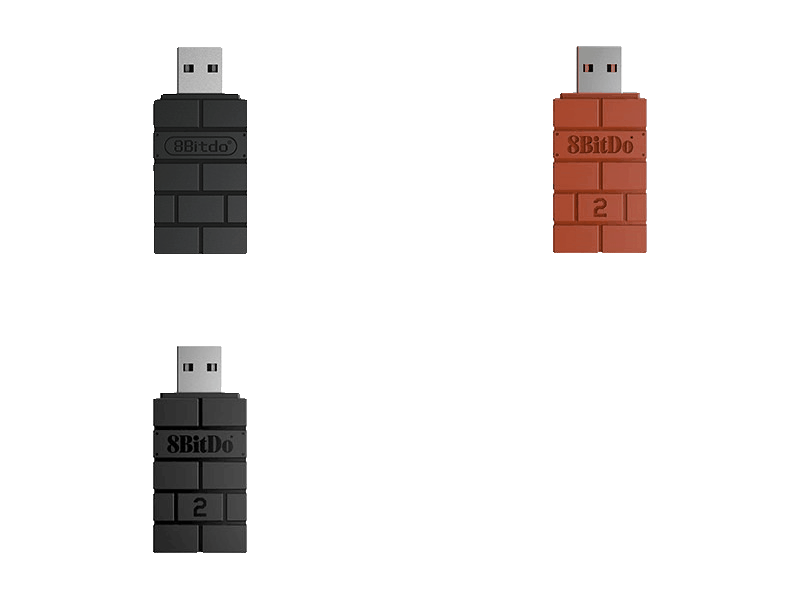 |
USB Wireless Adapter 2 | ✅ | PS3, PS4 (Pro), PS5, Xbox Series X | S, Xbox One, Wiimote, Wii U Pro, Switch Joy-Con, Switch Pro, 8BitDo controllers and sticks |
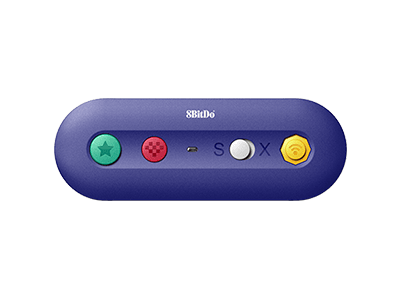 |
GBros Adapter (with the 8BitDo receiver) | ✅ | GameCube, GameCube WaveBird (with the extension cable), Wii Classic, Wii Classic Pro, NES Mini, SNES Mini |
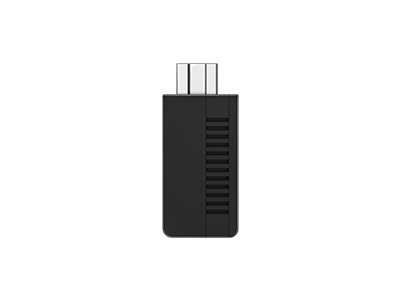 |
NES Receiver | ❓ | ❓ |
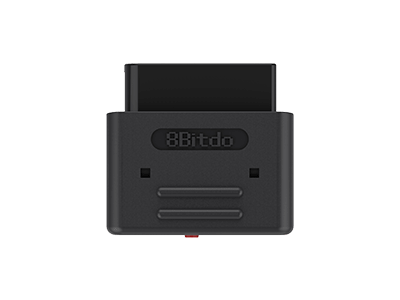 |
SNES Receiver | ❓ | ❓ |
¶ 8BitDo support
An 8BitDo controller must be unpaired before pairing it again. If pairing fails, try the "BT reset" from the table above, then the factory reset described in your model's manual.
¶ FAQ
¶ How to charge your controller?
Preferably, use the USB port of your computer or console. With a wall charger, never exceed 5 V / 1 A: too much current can damage the battery and make the controller unusable over Bluetooth.
¶ How to update the firmware?
Go to the 8BitDo support site and download the Upgrade tool software at the top of the page.
- Install the
8BitDo Firmware Upgraderapplication and open it. - Plug your controller into the PC when asked.
- The controller is detected automatically: click
Firmware Update. - Select the desired firmware and click the blue
Updatebutton. - Let the progress bar finish, click
Successand unplug the controller.
¶ How to power on/connect my controller correctly?
Depending on the target device, there are different power-on combinations:
START+Y= Switch modeSTART+A= macOS modeSTART+X= PC / Xbox / Windows mode (known as X-Input)START+B= Android mode (known as D-Input)
Hold the keys simultaneously until the controller powers on, then pair it. Over USB, hold the keys until power-on, then plug the cable in.
The Android mode (D-Input) is the preferred mode on Recalbox.
¶ How to connect my controller to another device?
The controller only remembers one pairing at a time. To move from your Switch to Recalbox for instance, reset the controller's pairing data — the per-model procedure is in the table above.
¶ How can I pair my USB adapter with my PS3 controller?
8BitDo provides a utility to manage PS3 controllers with its USB adapters.
Download this utility.
If you run into trouble on Windows, two solutions:
Solution 1: install SixaxisPairToolSetup-0.3.1.exe, downloadable from this page.
Solution 2: temporarily disable Windows driver signature enforcement. Help pictures are in the folder How To Temporarily Disable Driver Signature Enforcement On Win8 And Win10 inside 8Bitdo_PS3_Tool_Win_V1.1.zip.
For any other issue, you can install the libusb-win32 driver.
Windows driver signature enforcement may switch back on after an update.
Download this utility.
¶ What about arcade sticks?
Depending on the target device: Windows = XINPUT position, Android = DINPUT position (macOS and Switch: nothing to change).
- Select the XINPUT or DINPUT mode if needed.
- Press the PAIR button to start pairing (the blue LED blinks).
- Start pairing on the device side.
- The LED turns solid blue: the stick is ready.
¶ What about compatibility with the Zero v1 pad?
The Zero v1 pad works over Bluetooth only. Power the controller on by holding START + R1.
To use two Zero v1 pads:
- first controller: hold
START+R1; - second controller: hold
START+R1+B.
¶ My controller is not recognized over USB?
Preferably use the cable that came with the controller. Otherwise, make sure you have a data transfer USB cable: some cables only carry charge.
An 8BitDo model missing from the table? Share your test on the Recalbox Discord.