Every Recalbox release ships new MAME versions, and therefore new expected romsets. If you use the full romset, updating is easy: you replace everything. But if you took the time to build a selection of a few hundred games you actually like, replacing roms one by one is disheartening.
RomCenter automates exactly that: it converts your selection from one romset version to another, pulling missing files from a more recent romset.
This page follows a real example: a selection of about a thousand MAME games in romset 0.239 (Recalbox 9), to be converted to romset 0.278 for Recalbox 10.
¶ What you need
- The RomCenter software.
- The .dat file of the target romset version. On progetto-SNAPS, download the matching pack (for instance
MAME_Dats_278.7z) and take theMAME 0.278.datfile out of it. - Your current selection of roms.
- A recent romset to pull missing files from. It does not have to be exactly the target version: a newer romset works just as well, which is valuable since older versions are hard to find.
The romset version expected by each arcade core is listed in Emulators > Arcade.
¶ The procedure
¶ 1. Create the profile
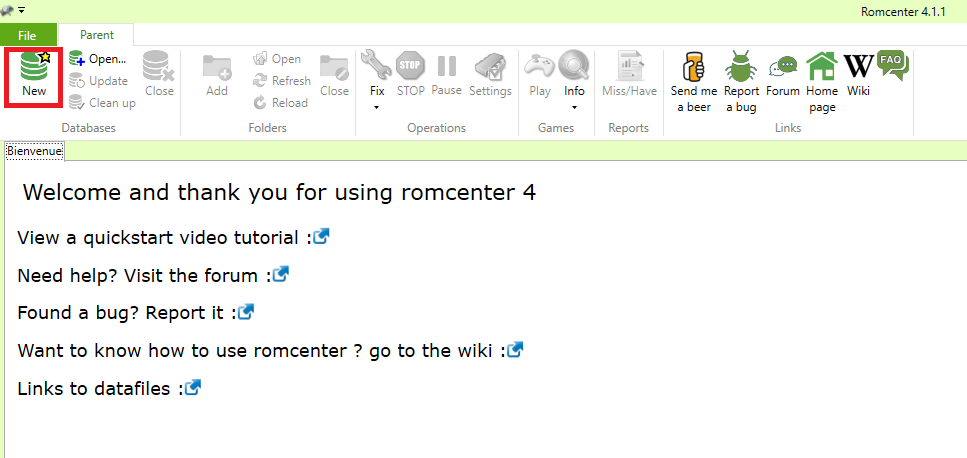
- Install and launch RomCenter, then click
New. - Select the
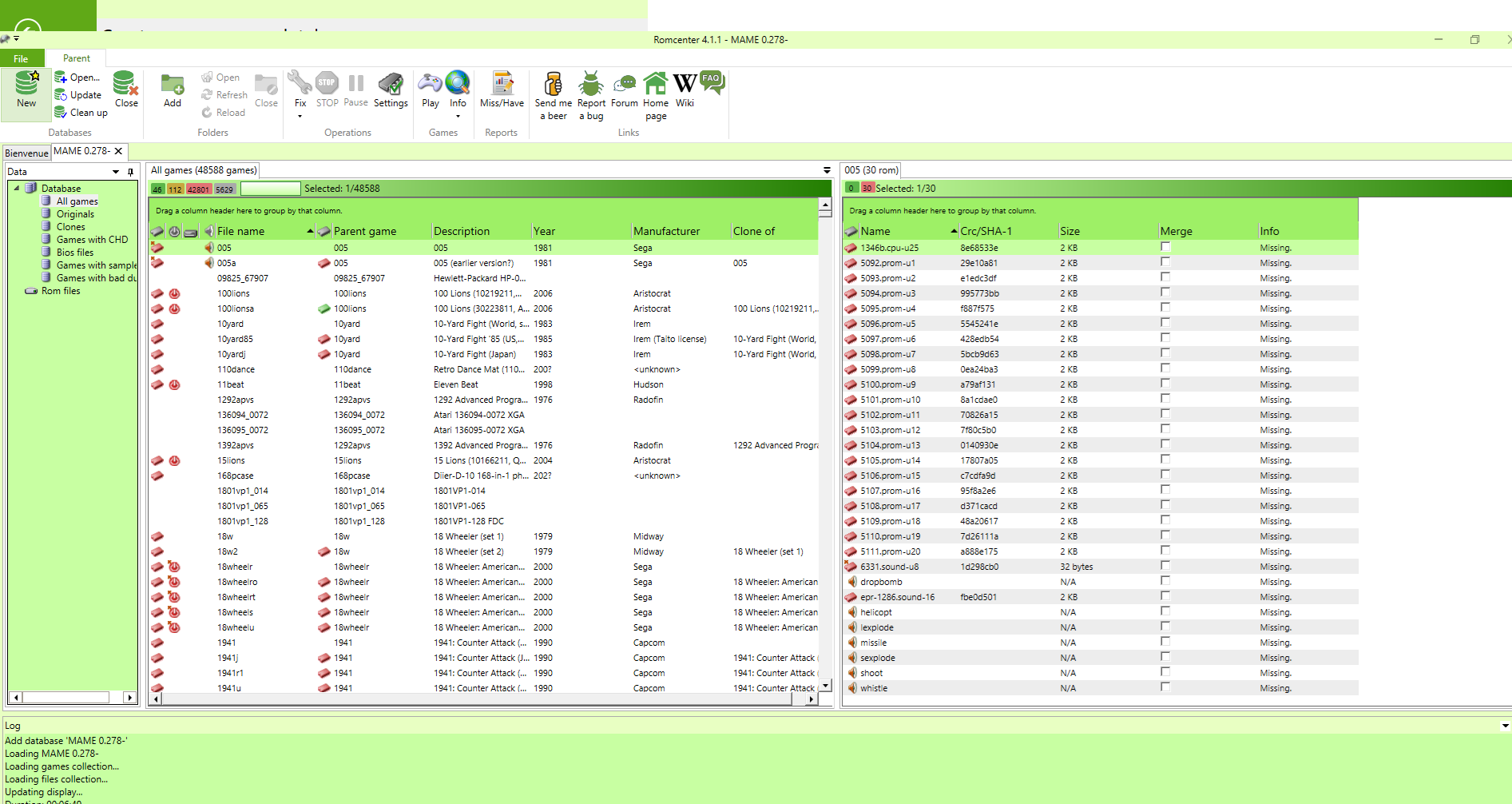
MAME 0.278.datfile: the description fields fill in automatically. - Click
Createand wait. There are close to 50,000 games to import: depending on your machine, this can take several minutes. A progress bar appears at the bottom right.
¶ 2. Add the selection to fix
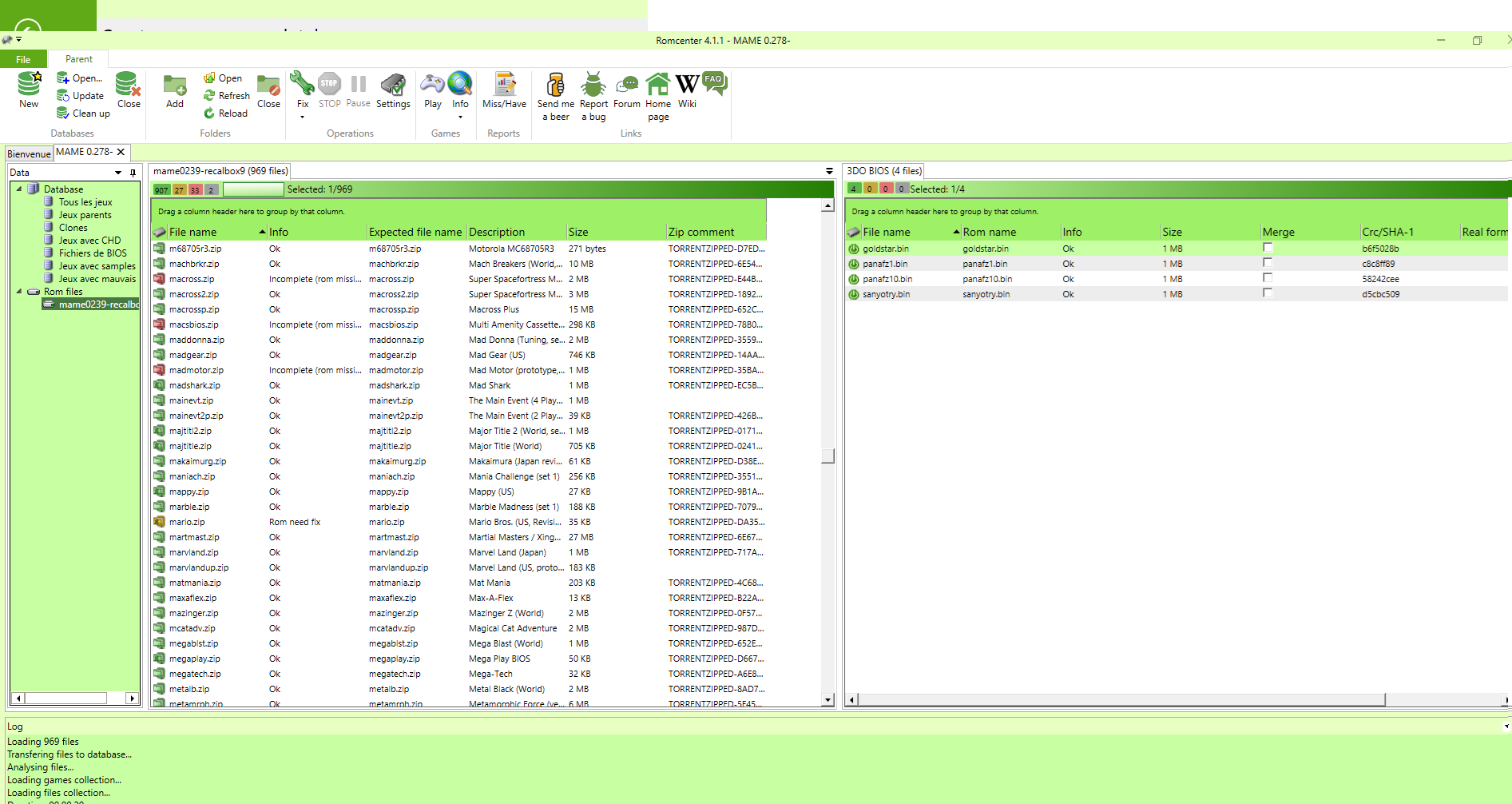
Right click Roms in the left tree → Add, and point to the folder holding your old selection.
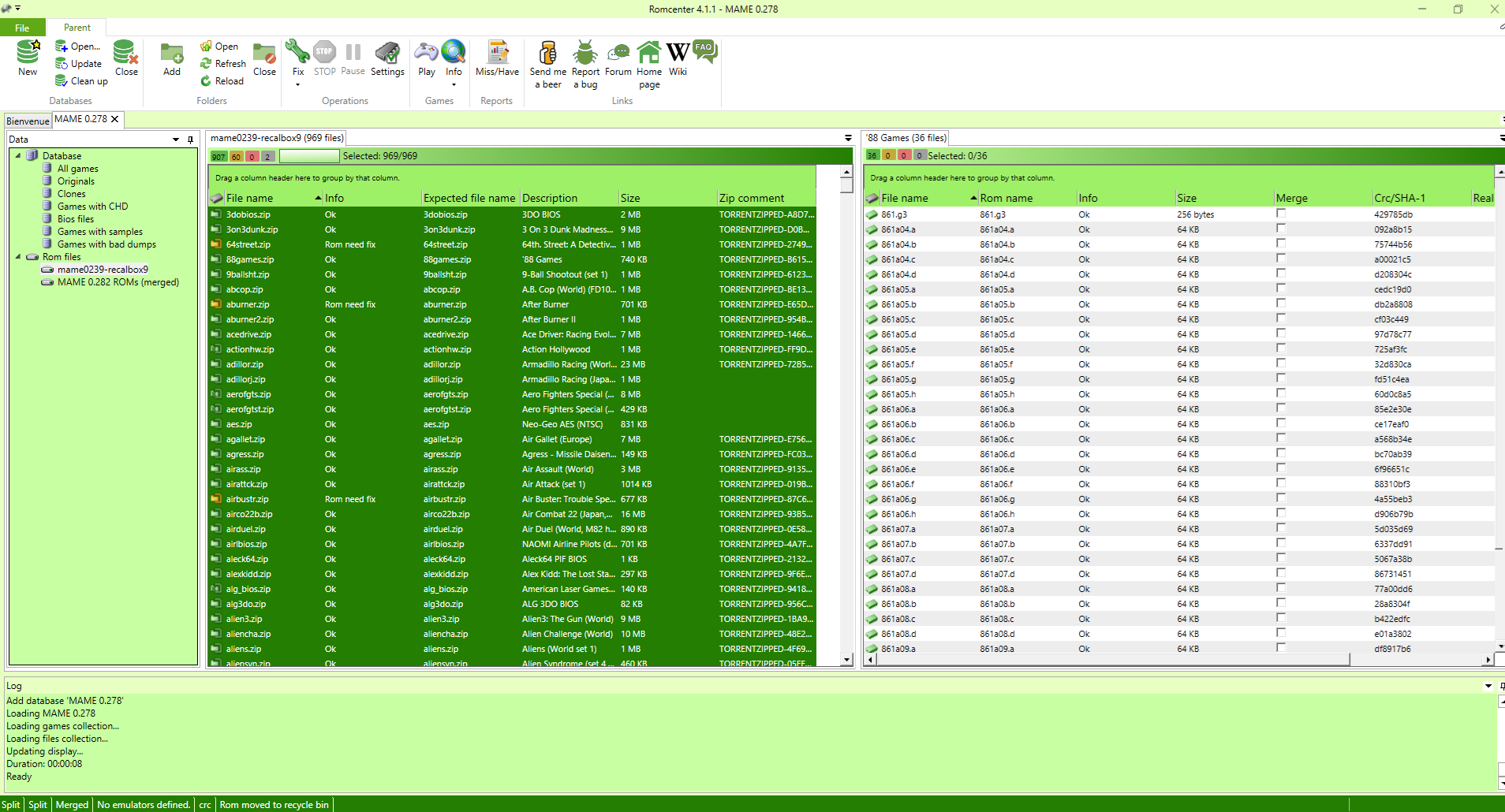
RomCenter then colour-codes every rom:
| Colour | Meaning |
|---|---|
| 🟢 Green | The rom already matches the target romset — nothing to do |
| 🟡 Yellow | The rom can be fixed right away (usually files to rename inside the archive) |
| 🔴 Red | Files are missing: RomCenter cannot fix it with what it has |
| ⚪ Grey | File foreign to the romset (a Recalbox gamelist.xml, for instance) |
¶ 3. Provide the raw material
To turn red roms into yellow ones, you need to give RomCenter a romset to source the missing files from.
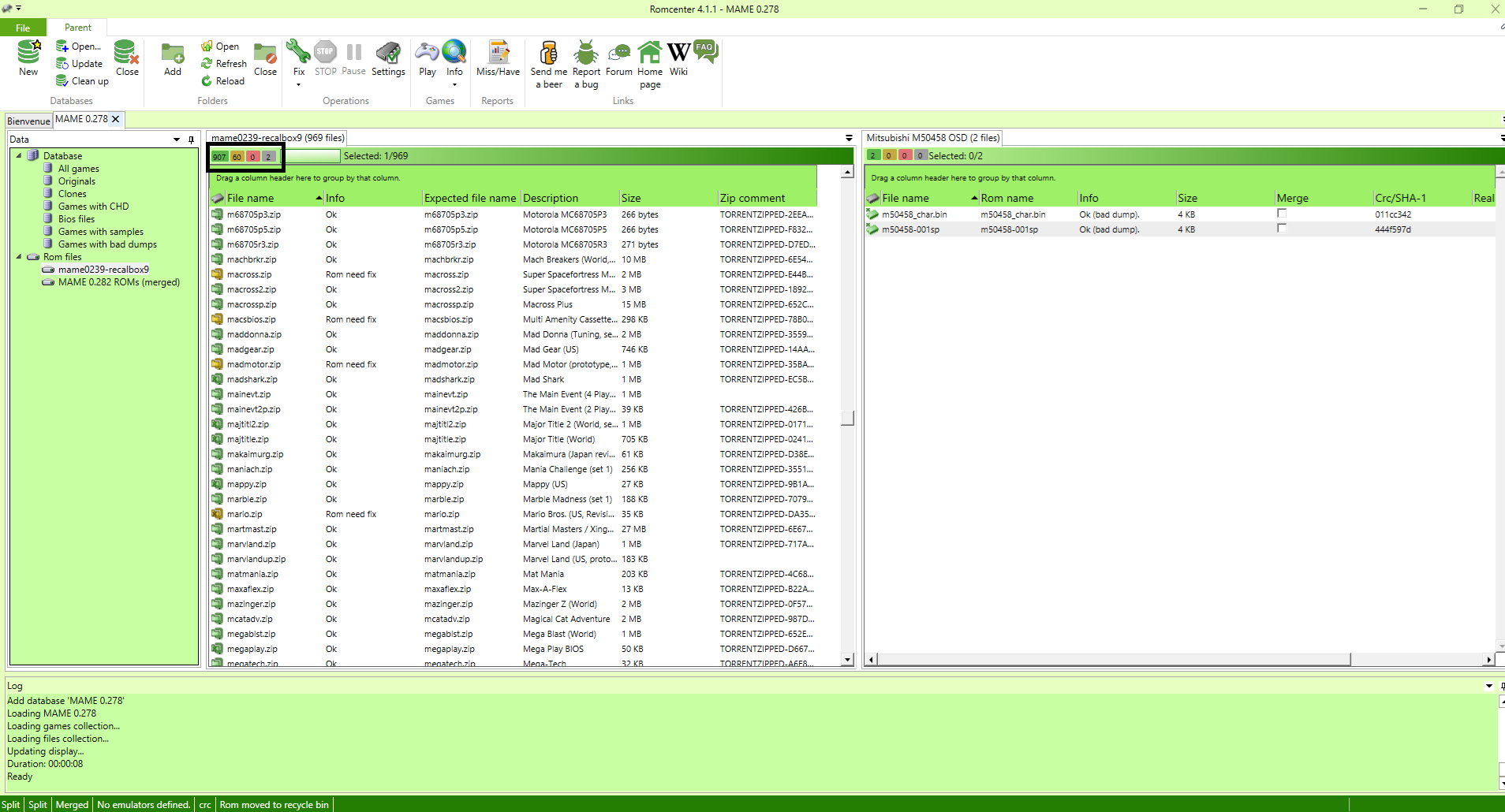
Right click Roms → Add again, and this time point to your recent romset folder.
Red roms turn yellow: they can now be fixed. The counter at the bottom of the window shows the new tally.
¶ 4. Fix
- Press
CTRL+Ato select every rom of your old selection. - Right click →
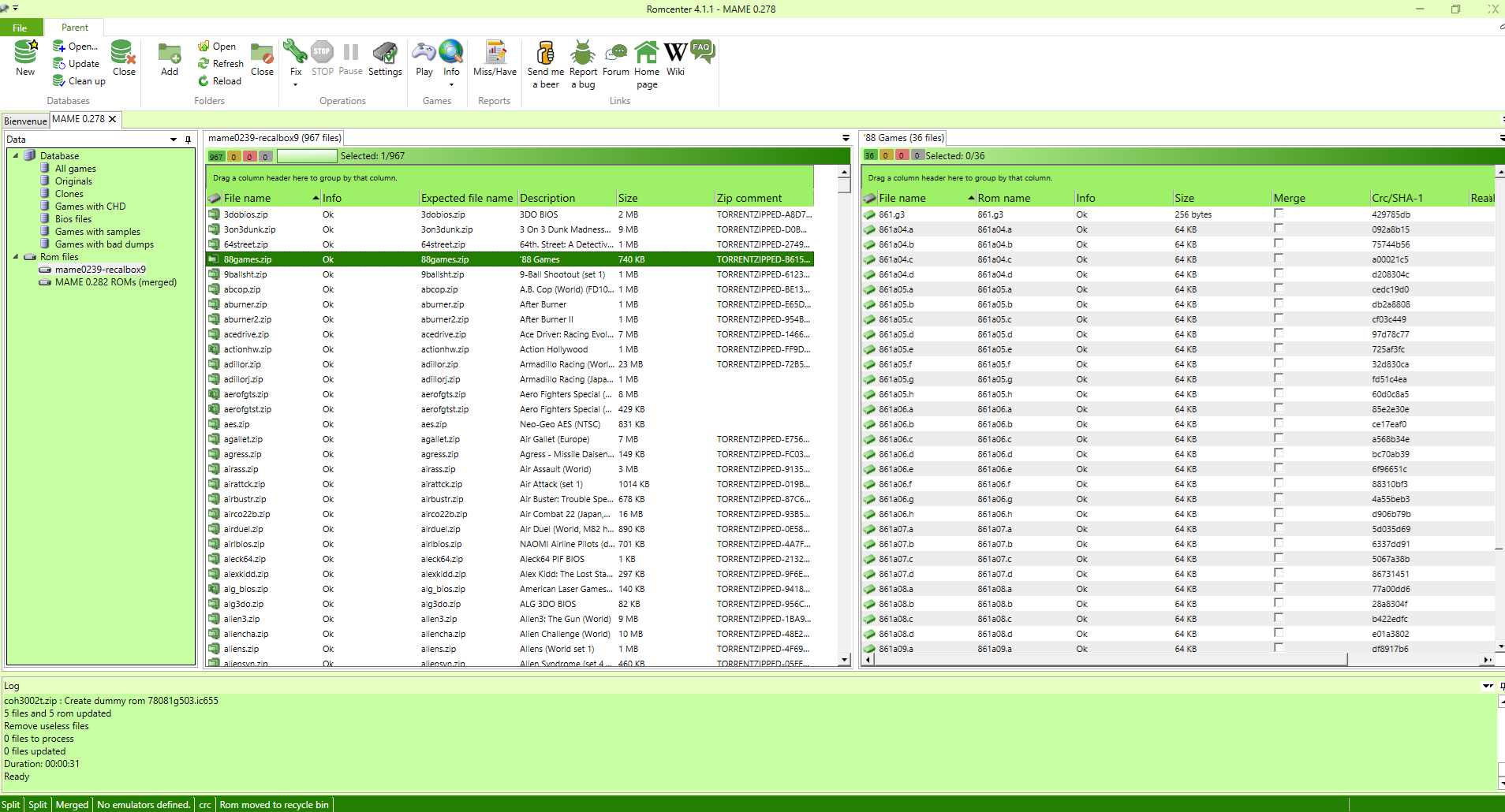
Fix items. - Wait: RomCenter rebuilds each rom so it matches exactly what the target romset expects.
At the end, everything should be green. Foreign files (grey) are removed along the way.
Your selection is converted: copy it into the matching roms folder of your Recalbox.
¶ When to use RomCenter rather than another tool?
- You use the full romset: this page is of no use to you, just replace the whole thing at every version change.
- You have a selection to maintain over time: that is RomCenter's use case, and what makes the operation bearable release after release.
- You want to audit a romset in detail (samples, CHDs, fine-grained filters): clrmamepro is more thorough.
Tutorial originally written by Hiei-/Blaw for the Recalbox wiki.