Your Recalbox IP address is needed as soon as you want to reach it from another device: web manager, network share, FTP, SSH, Kodi remote app. It looks like 192.168.1.42 and can be found in several ways.
¶ From the Recalbox interface
Press START then enter NETWORK SETTINGS: the address is shown in the IP ADDRESS field, right below the connection status.
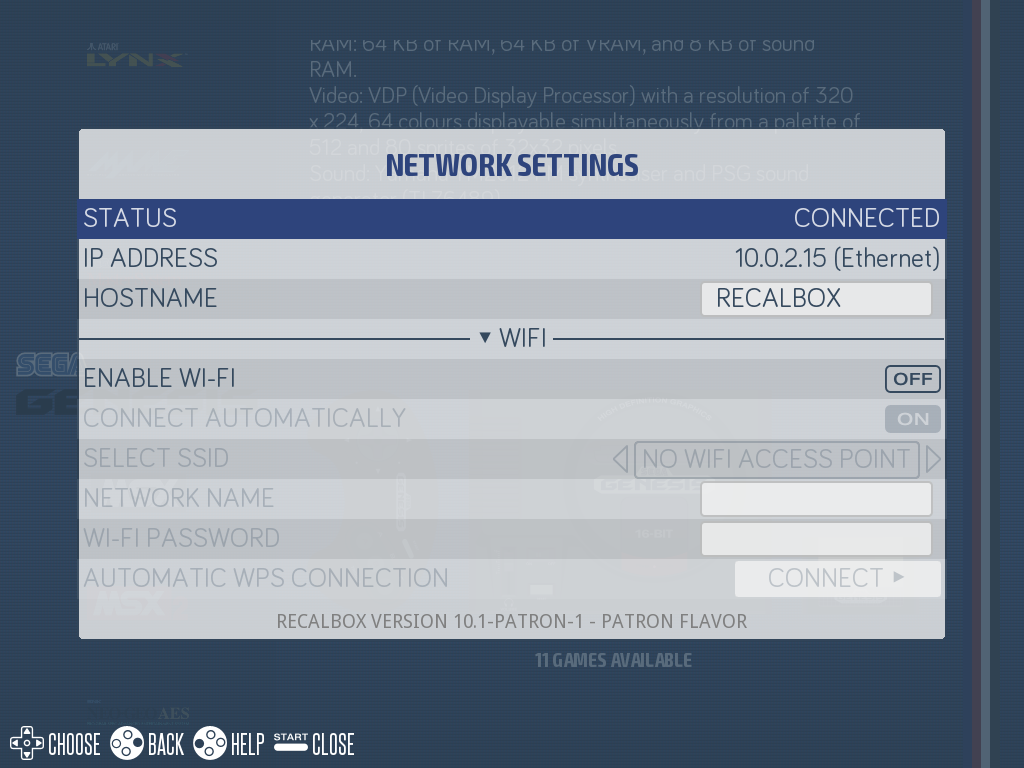
This is also where you check that the Recalbox is actually connected: if STATUS reports no connection, no IP address is displayed. Check the network cable, or go through the Wi-Fi setup again.
¶ By network name
Recalbox announces itself on the local network under the RECALBOX name: in many cases you do not need its IP address at all.
- Windows Explorer:
\\RECALBOX - Browser, SSH, FTP:
recalbox.local
¶ From your computer
¶ Windows
- In the search bar, type
cmdthenEnter. - In the command prompt, type
ping recalboxthenEnter.
The IP address shows up in the answer:
Pinging RECALBOX [192.168.1.42] with 32 bytes of data:
Reply from 192.168.1.42: bytes=32 time=1ms TTL=64
¶ macOS and Linux
Open a terminal and type:
ping recalbox.local
You can also list every device known on the network with arp -a.
¶ From your router
Your router administration interface (often at 192.168.1.1 or 192.168.0.1) offers a list of connected devices: the Recalbox appears there under the RECALBOX name. Free network scanning apps are also available on smartphones.
¶ Pinning the address down
By default the address is handed out by your router (DHCP) and may change from one boot to the next. To keep it stable, two options:
- the best one: reserve the address on your router, based on the Recalbox MAC address. Nothing to change on the Recalbox side;
- set a static address on the Recalbox side, with the
wifi.ip,wifi.netmask,wifi.gatewayandwifi.nameserverskeys of therecalbox.conffile — see Connecting Recalbox to the network.
A mistake in those settings can cause an address conflict and cut the Recalbox off the network. If you are not comfortable with them, prefer the reservation from your router.
Need help? Join the Recalbox Discord.