Whenever a text field must be filled with a controller — game search, WiFi network connection, ScreenScraper or RetroAchievements credentials, editing a game's information… — Recalbox shows an on-screen virtual keyboard.
Recalbox 10.1 ships two new virtual keyboards alongside the historical arcade wheel:
- the full keyboard, which mirrors a real keyboard (QWERTY, AZERTY… layout following your setting) with
ShiftandAltGr; - the simplified keyboard, smartphone-style, organized in pages (lowercase, uppercase, symbols).
¶ Picking your keyboard
- Press
STARTto open theMAIN MENU, then enterSYSTEM SETTINGS. - Open the
ON-SCREEN KEYBOARDoption and pick between:
| Value | Keyboard |
|---|---|
ARCADE WHEEL (default) |
the arcade wheel |
CLASSIC KEYBOARD |
the full keyboard |
SIMPLIFIED KEYBOARD |
the simplified keyboard |
The change is immediate, no reboot needed.
¶ The arcade wheel (ARCADE WHEEL)
Recalbox's historical keyboard: characters sit on a wheel you rotate to bring the wanted character to the selection position. Six character sets cycle with up/down: uppercase, lowercase (each including the space), digits and punctuation, symbols, accented lowercase and accented uppercase letters.
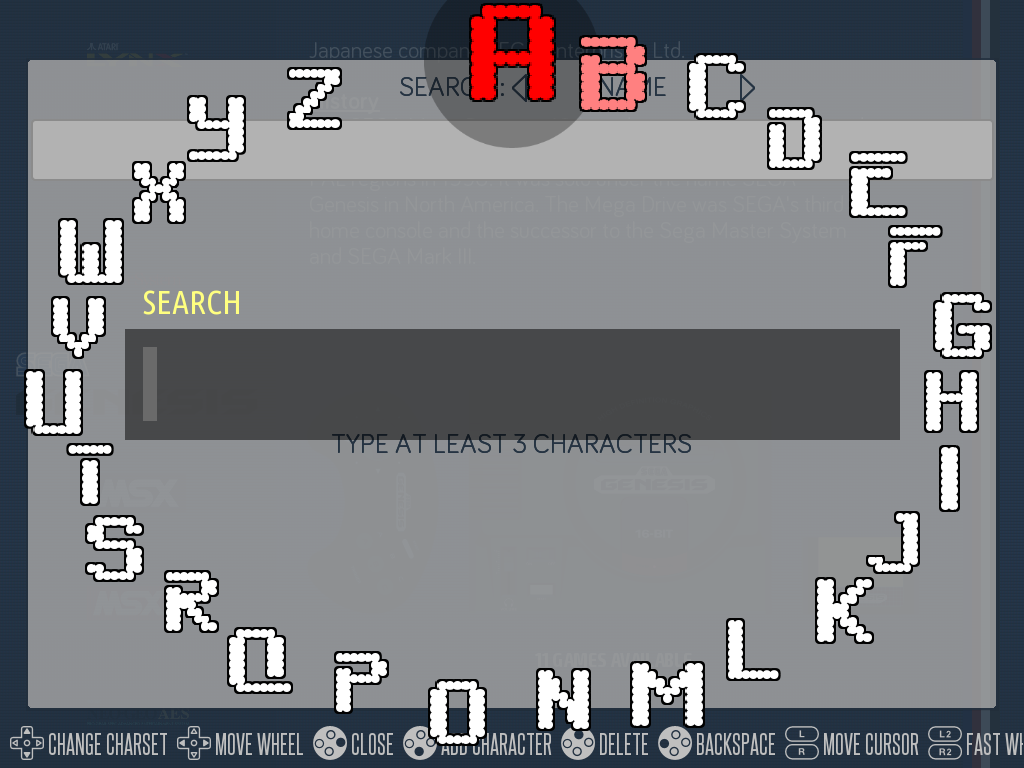
| Button | Action |
|---|---|
| D-pad left/right | rotate the wheel |
L2/R2 or left stick |
rotate the wheel fast |
| D-pad up/down | change character set |
A |
add the selected character |
Y |
delete the character left of the cursor (backspace) |
X |
delete the character under the cursor |
L1/R1 or right stick |
move the cursor in the text |
B or START |
finish typing and close |
¶ The full keyboard (CLASSIC KEYBOARD) — new in 10.1
A complete on-screen keyboard, faithful to a physical one. Its layout follows the KEYBOARD option in SYSTEM SETTINGS: US (Standard QWERTY) by default, FR (French AZERTY), DE (German QWERTZ), DK (Denmark QWERTY), ES (Spanish QWERTY) or IT (Italian QWERTY).
The Shift and AltGr keys give access to uppercase and special characters: a short press (with A) only affects the next key, a long press locks the modifier until pressed again.
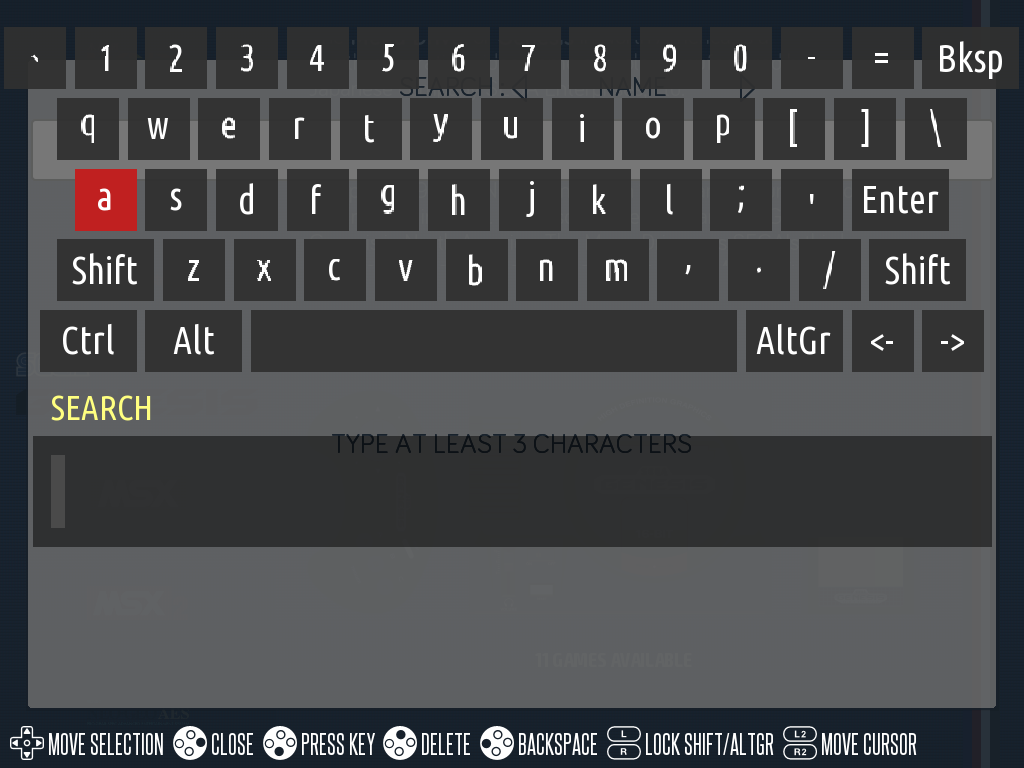
| Button | Action |
|---|---|
| D-pad | move the selection on the keyboard |
A |
press the selected key |
L1 |
lock/unlock Shift |
R1 |
lock/unlock AltGr |
L2/R2 |
move the cursor in the text |
Y |
delete the character left of the cursor (backspace) |
X |
delete the character under the cursor |
B or START |
finish typing and close |
The virtual keyboard's Enter key also finishes typing.
¶ The simplified keyboard (SIMPLIFIED KEYBOARD) — new in 10.1
A compact, smartphone-style keyboard — the "mobile" keyboard of the release notes. It is organized in pages: lowercase, uppercase, then symbols. Each letter page shows a digit row on top, the letters (arranged following the KEYBOARD layout option), and a function row: Bksp, Space, Enter, <-, ->.
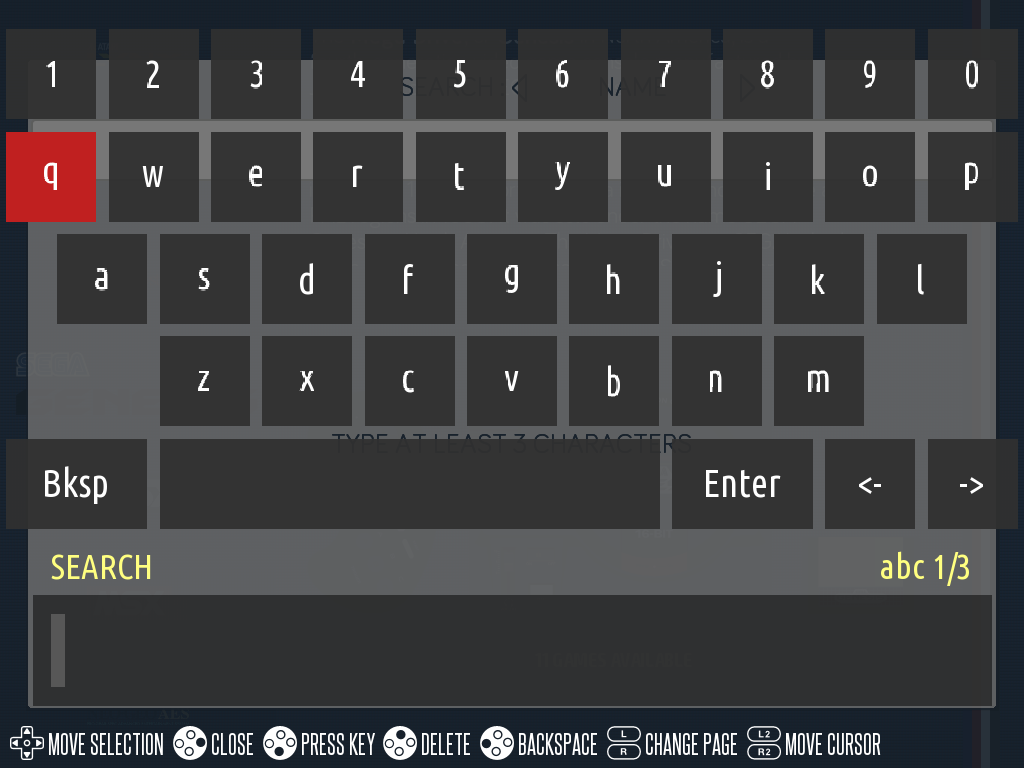
| Button | Action |
|---|---|
| D-pad | move the selection on the keyboard |
A |
press the selected key |
L1/R1 |
change page (lowercase / uppercase / symbols) |
L2/R2 |
move the cursor in the text |
Y |
delete the character left of the cursor (backspace) |
X |
delete the character under the cursor |
B or START |
finish typing and close |
The virtual keyboard's Enter key also finishes typing.
¶ With a real keyboard
If a USB or Bluetooth keyboard is plugged in, you can type text directly even while the virtual keyboard is displayed: Backspace and Delete erase, the left/right arrows move the cursor, and Enter or Esc finishes typing.
¶ Frequently asked questions
The full keyboard is not in my layout? Its layout follows the KEYBOARD option in SYSTEM SETTINGS (default US (Standard QWERTY)): pick your layout there, then reboot.
Does leaving the keyboard cancel what I typed? No: both B and START close the keyboard keeping the text as displayed in the field.